Most Chromebooks can’t install Windows. Google and Microsoft don’t support it, most Chromebooks lack Windows drivers for their keyboard, touchpad, and audio, and replacing the Chromebook’s firmware can permanently break the device and void its warranty. The practical way to use Windows on a Chromebook is to stream it: use a cloud PC such as Windows 365, connect to your own Windows PC with Remote Desktop, or, on supported business Chromebooks, run Windows in Parallels Desktop for ChromeOS.
Below are the realistic options, what each costs, and how to pick the right one, plus free ways to use Microsoft apps without Windows.
Your options for running Windows on a Chromebook
| Option | What you need | Best for |
|---|---|---|
| Microsoft 365 on the web | A free Microsoft account (paid plan for full features) | Word, Excel, PowerPoint, and Outlook |
| Remote Desktop to your own PC | A Windows PC that stays on, and a remote desktop app | Using apps you already have at home or work |
| Cloud PC (Windows 365 or similar) | A paid subscription, usually through work | A full Windows desktop from anywhere |
| Parallels Desktop for ChromeOS | A supported high-end Chromebook, a license, and a Windows license | Businesses that need local Windows apps |
| Replacing ChromeOS firmware | A compatible model and advanced skills | Hobbyists only. Risky and not recommended. |
Option 1: Use Microsoft apps in the browser
If you need Office, you may not need Windows at all. Go to office.com in Chrome and sign in to use Word, Excel, PowerPoint, and Outlook online. You can install them as web apps from Chrome’s menu so they open like regular apps.
Option 2: Connect to a Windows PC remotely
- On your Windows PC, set up a remote access app. Chrome Remote Desktop is free and works from any Chromebook.
- On the Chromebook, open the same service in Chrome and sign in with the same account.
- Choose your PC and enter its PIN. Your Windows desktop appears in a browser tab.
Windows Pro PCs also support Microsoft’s Remote Desktop, which you can use through the Windows App on ChromeOS.
Option 3: Use a cloud PC
- Get access to a cloud PC through your employer or a subscription service.
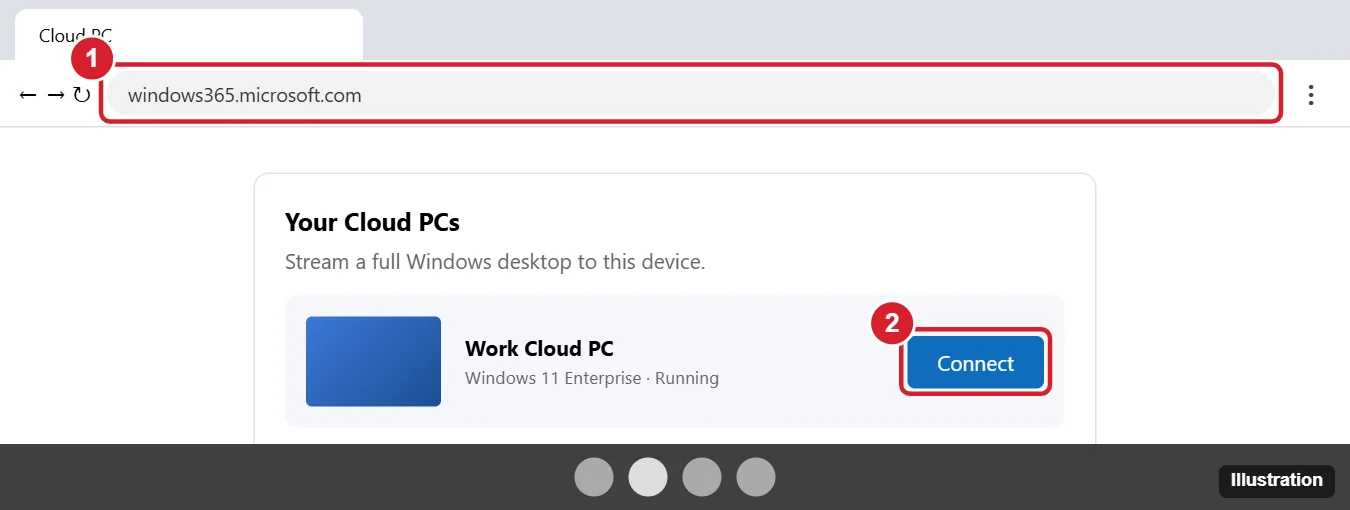
- On the Chromebook, go to the service’s web portal in Chrome and sign in.
- Click Connect next to your cloud PC. Windows streams in the browser.
Option 4: Parallels Desktop for ChromeOS
Parallels runs a full copy of Windows locally on certain Chromebooks, mostly enterprise and high-end models with plenty of RAM and storage. It’s sold to businesses and managed through the Google Admin console, so it isn’t available on most personal Chromebooks.
Compare the options
| Option | Full Windows desktop? | Works offline? | Best for |
|---|---|---|---|
| Microsoft 365 on the web | No, just the apps | No | Word, Excel, PowerPoint, and Outlook |
| Remote Desktop to your own PC | Yes, your existing PC | No | People who already own a Windows computer |
| Cloud PC (Windows 365) | Yes | No | Work accounts that provide one |
| Parallels Desktop for ChromeOS | Yes, running locally | Yes | Supported enterprise Chromebooks with plenty of RAM |
Why old “Developer Mode” tutorials don’t give you Windows
Many older guides tell you to turn on Developer Mode, install Linux or Crouton, and add Wine. That doesn’t install Windows 10 or 11. Wine is a compatibility layer that can run some simple Windows programs inside Linux, and many apps don’t work at all. Developer Mode also wipes the Chromebook when you turn it on and weakens its security. Crouton is no longer maintained, and Linux is built into ChromeOS as the Linux development environment, which doesn’t need Developer Mode.
Check your Chromebook first
- Processor: Open Settings > About ChromeOS > Diagnostics to see the CPU. ARM-based models (MediaTek or Qualcomm) can’t run x86 Windows apps through Wine at all.
- Managed devices: School and work Chromebooks usually block Linux, Developer Mode, and remote-access apps. Ask your administrator.
- Storage and RAM: Anything that runs Windows locally needs far more than the 4 GB of RAM and 32 or 64 GB of storage many Chromebooks have.
What about replacing ChromeOS with Windows?
Some enthusiasts flash custom firmware to install Windows on older Intel or AMD Chromebooks. It can brick the device, often leaves hardware like audio or the touchpad without working drivers, and voids the warranty. If you need Windows every day, a budget Windows laptop is usually a better investment.
Frequently asked questions
Can I run Windows apps on a Chromebook?
Not directly. Use web versions, Android alternatives from Google Play, Linux apps, or stream Windows from another computer.
Is there a free way to use Windows on a Chromebook?
Yes, if you already own a Windows PC. Chrome Remote Desktop is free.
Will Windows run on a Chromebook with an ARM processor?
No. There’s no supported way to install Windows on ARM Chromebooks.

Kermit Matthews is a freelance writer based in Philadelphia, Pennsylvania with more than a decade of experience writing technology guides. He has a Bachelor’s and Master’s degree in Computer Science and has spent much of his professional career in IT management.
He specializes in writing content about iPhones, Android devices, Microsoft Office, and many other popular applications and devices.