Windows Remote Desktop lets you control one PC from another as if you were sitting in front of it. The PC you connect to must run Windows 11 or Windows 10 Pro, Enterprise, or Education; Home editions can connect out but cannot be connected to. Windows 10 reached end of support on October 14, 2025. Consumer Extended Security Updates (ESU) now run until October 12, 2027.
Quick Answer
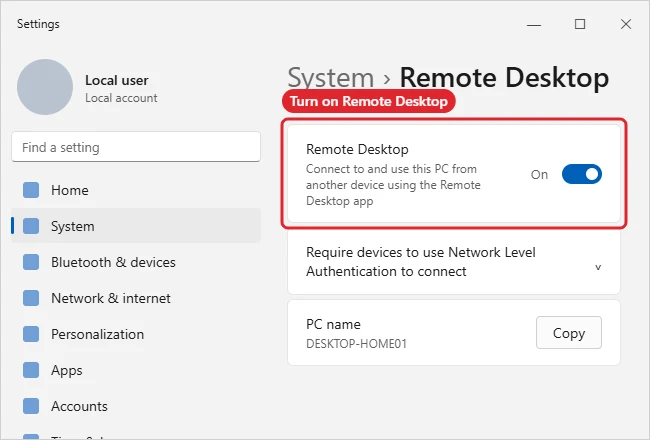
On the PC you want to reach, open Settings, System, Remote Desktop, and turn it on. On the other device, open Remote Desktop Connection (or the Windows App), enter the PC name, and sign in with that PC’s account.
How to Use Windows Remote Desktop
- On the host PC, open Settings, System, Remote Desktop, and turn on Remote Desktop. Confirm when asked.
- Note the PC name shown on the same page, and make sure the account you will use has a password.
- On the other Windows PC, search Start for Remote Desktop Connection and open it (or use the Windows App on other devices).
- Enter the host PC name or IP address and click Connect.
- Sign in with the host PC’s user name and password, then work on the remote desktop. Close the window or sign out when finished.
Remote Desktop Requirements
| Item | Details |
|---|---|
| Host edition | Pro, Enterprise, or Education |
| Client | Any Windows edition, Mac, iPhone, or Android app |
| Network | Same network, or VPN for remote access |
| Account | Must have a password |
| Power | Host must be on and awake |
Troubleshooting
- Remote Desktop is missing on the host: it runs Home edition, which cannot host sessions.
- Connection fails outside your home: do not open port 3389 to the internet. Use a VPN or a remote access service instead.
- For another approach, see how to remote into a computer on Windows 10.
- Using Home edition? Read your options for Remote Desktop on Windows 10 Home.
Frequently Asked Questions
Is Remote Desktop secure?
It is when used on a private network or through a VPN with strong passwords and Network Level Authentication.
Can someone see what I do remotely?
The host screen locks while you are connected, so people at the PC see the lock screen.
Can I use it from a phone?
Yes, with the Windows App from your phone’s app store.
Summary
- Turn on Remote Desktop on the host.
- Note the PC name.
- Connect with Remote Desktop Connection.
- Use a VPN for access outside home.

Kermit Matthews is a freelance writer based in Philadelphia, Pennsylvania with more than a decade of experience writing technology guides. He has a Bachelor’s and Master’s degree in Computer Science and has spent much of his professional career in IT management.
He specializes in writing content about iPhones, Android devices, Microsoft Office, and many other popular applications and devices.