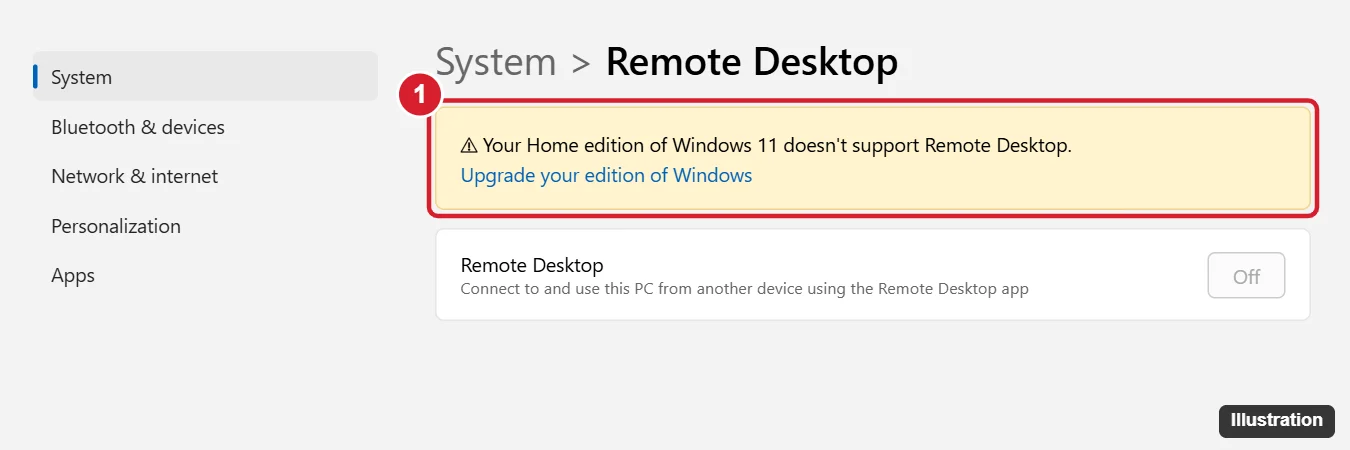
Windows 11 Home can’t host Remote Desktop, so other computers can’t connect to it with Microsoft’s Remote Desktop app. You can still use a Windows 11 Home PC to connect to a Pro, Enterprise, or Server machine with Remote Desktop Connection or the Windows App. To control a Home PC remotely, use Quick Assist (built in) or a free tool like Chrome Remote Desktop, or upgrade to Windows 11 Pro.
Below you’ll learn how each option works and which one fits your situation.
Your options at a glance
| Goal | Best option |
|---|---|
| Connect from a Home PC to a work or Pro PC | Remote Desktop Connection (built in) |
| Help someone else with their Home PC | Quick Assist (built in) |
| Access your own Home PC from anywhere | Chrome Remote Desktop or another remote access app |
| Use Microsoft’s Remote Desktop to reach this PC | Upgrade to Windows 11 Pro |
Option 1: Connect from Windows 11 Home to another PC
- Click Start, type Remote Desktop Connection, and open it.
- Enter the name or IP address of the remote PC and click Connect.
- Sign in with an account on the remote PC.
The remote PC must run Windows Pro, Enterprise, Education, or Server with Remote Desktop turned on.
Option 2: Use Quick Assist
- Both people open Quick Assist from the Start menu.
- The helper clicks Help someone, signs in with a Microsoft account, and shares the code.
- The person being helped enters the code in Get help and allows the connection.
Only use Quick Assist with people you know and trust. Scammers often pose as tech support to ask for Quick Assist codes.
Option 3: Chrome Remote Desktop
- On the Home PC, open Chrome, go to Chrome Remote Desktop, and set up Remote Access. Choose a name and PIN.
- On any other device, sign in to the same Google account at the same site and pick your PC.
- Enter the PIN to connect.
Option 4: Upgrade to Windows 11 Pro
Go to Settings > System > Activation > Upgrade your edition of Windows. After upgrading, turn on Remote Desktop in Settings > System > Remote Desktop.
A note about “RDP wrapper” workarounds
Some guides suggest third-party patches to enable Remote Desktop hosting on Home. These modify Windows system files, can break after updates, may violate Microsoft’s license terms, and can be a security risk. Using one of the options above is safer.
Frequently asked questions
How do I check my Windows edition?
Go to Settings > System > About and look at Edition.
Is Chrome Remote Desktop free?
Yes. You need a Google account and Chrome on the host PC.
Can I use Remote Desktop over the internet?
For Pro PCs, use a VPN rather than exposing Remote Desktop directly to the internet, which is a common target for attacks.

Kermit Matthews is a freelance writer based in Philadelphia, Pennsylvania with more than a decade of experience writing technology guides. He has a Bachelor’s and Master’s degree in Computer Science and has spent much of his professional career in IT management.
He specializes in writing content about iPhones, Android devices, Microsoft Office, and many other popular applications and devices.