Windows can open ZIP files without any extra software. You can extract everything at once with Extract All, or open the ZIP like a folder and drag out just the files you need. Recent versions of Windows 11 can also open other archive types, such as 7z, RAR, and TAR, with the same tools.
Quick Answer
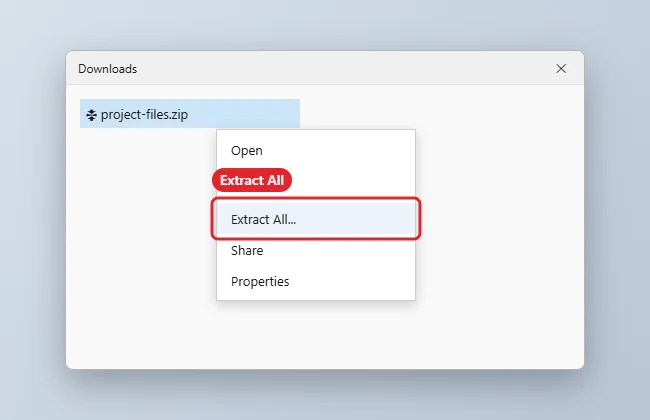
Right-click the ZIP file, choose Extract All, pick a destination folder, and click Extract. Windows creates a normal folder with all the files inside.
How to Unzip Files in Windows
- Find the ZIP file, usually in your Downloads folder.
- Right-click it and choose Extract All.
- Keep the suggested destination or click Browse to choose another folder.
- Leave Show extracted files when complete checked and click Extract.
- To grab only some files, double-click the ZIP to open it, then drag the files you want to another folder.
Archive Support in Windows
| Format | Built-in support |
|---|---|
| ZIP | Open and extract on Windows 10 and 11 |
| 7z, RAR, TAR | Extract on recent Windows 11 versions |
| Password-protected ZIP | Supported for standard ZIP encryption; you need the password |
| Split archives | Need a dedicated archive tool |
New to downloads? See how to open a downloaded file on Windows 10.
Troubleshooting
- Extract All is missing: another archive program may have taken over ZIP files. Right-click, choose Open with, and pick File Explorer, or set the default in Settings, Apps, Default apps.
- Files will not open after extracting: make sure you extracted them first, since programs often cannot run from inside a ZIP.
- A file is blocked: right-click it, open Properties, and check Unblock only if you trust the source.
- To make your own archive, see how to zip a folder in Windows.
- For more on shrinking files, read how to compress files on Windows.
Related: Extract multiple ZIP files at once.
Frequently Asked Questions
Is unzipping safe?
Extracting is safe, but the files inside can still be harmful. Only open archives from sources you trust and scan them with Windows Security.
Why is Extract All slow?
Very large or highly compressed archives take time. Extracting to a fast internal drive helps.
Can I unzip on Windows 7?
Yes, with Extract All, although Windows 7 is no longer supported. See how to unzip files on Windows 7.
Summary
- Right-click the ZIP file.
- Choose Extract All.
- Pick a destination and click Extract.
- Or open the ZIP and drag out single files.

Kermit Matthews is a freelance writer based in Philadelphia, Pennsylvania with more than a decade of experience writing technology guides. He has a Bachelor’s and Master’s degree in Computer Science and has spent much of his professional career in IT management.
He specializes in writing content about iPhones, Android devices, Microsoft Office, and many other popular applications and devices.