Your Windows 11 screen suddenly looks wrong: sideways or upside down, zoomed in, stretched, black and white, inverted colors, or stuck in full screen. Most of these happen from an accidental keyboard shortcut or a settings change, and each has a quick fix. Find what your screen looks like below and follow the matching steps.
Quick Answer
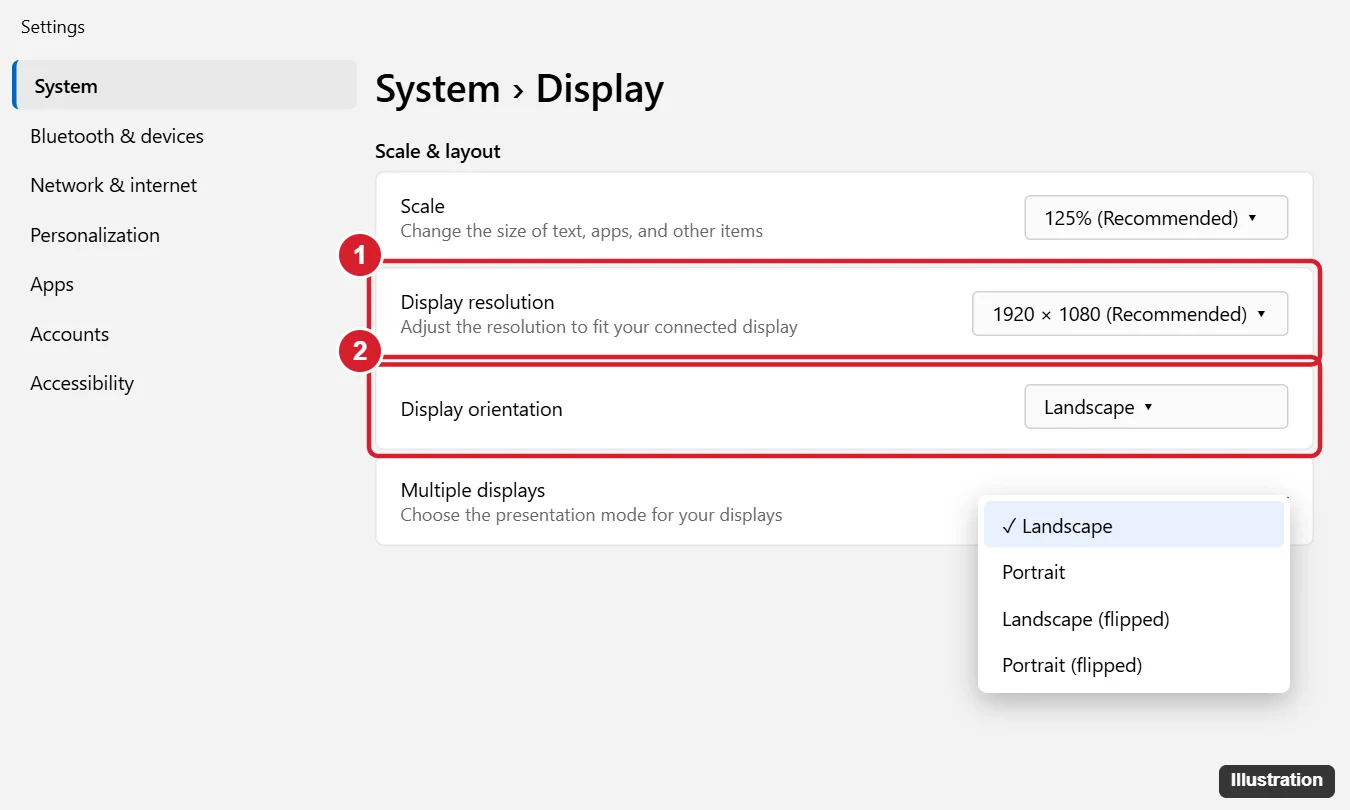
- Sideways or upside down: Settings > System > Display > Display orientation > Landscape.
- Everything too big or blurry: Set Display resolution and Scale to the (Recommended) values.
- Zoomed in: Press Windows + Esc to close Magnifier, or Ctrl + 0 in a browser.
- Black and white or inverted colors: Press Windows + Ctrl + C to turn off color filters.
Screen Is Sideways or Upside Down
- Right-click the desktop and choose Display settings (use arrow keys and Enter if the mouse feels backward).
- Under Display orientation, choose Landscape.
- Click Keep changes.
On some PCs with Intel graphics, Ctrl + Alt + Up arrow rotates the screen back instantly. On 2-in-1 laptops, turn on Rotation lock in Quick Settings to stop it rotating when you move the device.
Everything Is Too Big, Too Small, or Blurry
- Go to Settings > System > Display.
- Set Display resolution to the option marked (Recommended).
- Set Scale to the (Recommended) percentage.
If the resolution options are limited or the screen looks stretched, update your graphics driver (Device Manager > Display adapters, or the GPU maker’s website).
Screen Is Zoomed In
- Magnifier: Press Windows + Esc to turn it off (Windows + plus turns it on).
- Browser or app zoom: Press Ctrl + 0 to reset, or hold Ctrl and scroll.
- Desktop icons too big: Right-click the desktop, choose View, and pick Medium icons, or hold Ctrl and scroll on the desktop.
Colors Look Wrong
- Black and white or inverted: Press Windows + Ctrl + C, or go to Settings > Accessibility > Color filters and turn them off.
- High contrast (black background, bright text): Press Left Alt + Left Shift + Print Screen, or go to Settings > Accessibility > Contrast themes and choose None.
- Orange or yellow tint: Turn off Night light in Settings > System > Display or Quick Settings.
- Everything inverted like a negative: Magnifier’s invert option may be on; press Ctrl + Alt + I while Magnifier is running, or close Magnifier.
Stuck in Full Screen or the Taskbar Is Missing
- Press F11 (or Esc) to exit full screen in browsers and apps.
- If the taskbar is hidden, move the mouse to the bottom edge; turn off Automatically hide the taskbar in Settings > Personalization > Taskbar > Taskbar behaviors.
Screen Went Black or Frozen
Press Windows + Ctrl + Shift + B to restart the graphics driver. You’ll hear a beep and the screen flickers. If that doesn’t help, restart the PC.
Still Not Normal?
- Restart the PC; some changes only reset after a reboot.
- Check the monitor’s own menu buttons for zoom, aspect ratio, or color modes, and choose a reset option.
- Roll back a recent graphics driver update in Device Manager.
Summary
- Sideways: set Display orientation to Landscape.
- Wrong size: use the Recommended resolution and scale.
- Zoomed: Windows + Esc or Ctrl + 0.
- Colors: Windows + Ctrl + C and turn off high contrast.

Kermit Matthews is a freelance writer based in Philadelphia, Pennsylvania with more than a decade of experience writing technology guides. He has a Bachelor’s and Master’s degree in Computer Science and has spent much of his professional career in IT management.
He specializes in writing content about iPhones, Android devices, Microsoft Office, and many other popular applications and devices.