A nearly full drive slows Windows down, blocks updates, and leaves no room for new files. The good news is that Windows 11 includes everything you need to reclaim space: Storage settings show what is using the drive, cleanup recommendations flag easy wins, and Storage Sense can clean up automatically. The same tools exist in Windows 10 with slightly different menus. Windows 10 reached end of support on October 14, 2025. Consumer Extended Security Updates (ESU) now run until October 12, 2027.
Quick Answer
Open Settings, System, Storage. Delete Temporary files, review Cleanup recommendations, uninstall apps you do not use, and turn on Storage Sense so Windows clears junk automatically.
How to Free Up Disk Space on Windows
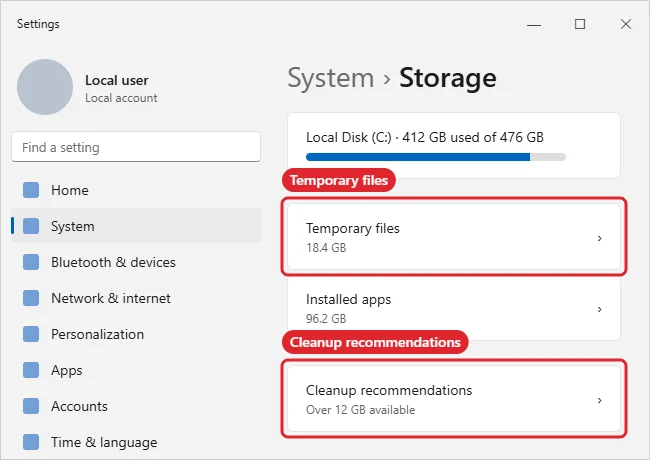
- Open Settings, choose System, then Storage to see what is taking up space.
- Click Temporary files, tick the categories you want to remove, such as Windows Update Cleanup and Delivery Optimization files, and click Remove files. Leave Downloads unticked unless you have checked that folder.
- Open Cleanup recommendations to review large or unused files, files synced to the cloud, and unused apps.
- Go to Settings, Apps, Installed apps, and uninstall programs and games you no longer use.
- Turn on Storage Sense on the Storage page and set it to empty the Recycle Bin and clear temporary files on a schedule.
- Move photos, videos, and old projects to an external drive or cloud storage, and empty the Recycle Bin.
Where the Space Usually Goes
| Item | How to clear it |
|---|---|
| Temporary and update files | Storage, Temporary files |
| Unused apps and games | Apps, Installed apps |
| Large personal files | Cleanup recommendations or move them off the drive |
| Recycle Bin | Empty it or let Storage Sense do it |
| Hibernation file | Only if you never hibernate: powercfg /h off in an admin terminal |
After a feature update, also delete Windows setup files.
On Windows 10 specifically, see how to increase C drive space.
Troubleshooting
- Space fills up again quickly: check the Downloads folder and any app caches, then set Storage Sense to run weekly.
- Cannot find the big files? Follow how to find large files on Windows 11.
- The classic Disk Cleanup tool is still included; search for it in Start and click Clean up system files for extra options. See how to clear temp files for details.
- To check free space first, read how to check disk space on Windows.
- Considering the hibernation file? Read how to disable hibernate before turning it off.
Frequently Asked Questions
Is it safe to delete temporary files?
Yes. Windows only lists files it can remove safely. Just review the Downloads and Recycle Bin boxes before removing them.
How much free space should I keep?
A common rule of thumb is to keep at least 10 to 15 percent of the drive free so updates and virtual memory have room.
Does Windows Update Cleanup remove updates I need?
No. It removes old copies of updates that have been replaced, though you may lose the ability to roll back some updates.
Summary
- Open Settings, System, Storage.
- Remove temporary files and review Cleanup recommendations.
- Uninstall unused apps.
- Turn on Storage Sense.
- Move large files to external or cloud storage.

Kermit Matthews is a freelance writer based in Philadelphia, Pennsylvania with more than a decade of experience writing technology guides. He has a Bachelor’s and Master’s degree in Computer Science and has spent much of his professional career in IT management.
He specializes in writing content about iPhones, Android devices, Microsoft Office, and many other popular applications and devices.