The easiest way to clear temp files in Windows 10 is through Settings. Go to Settings > System > Storage, click Temporary files, check the items you want to delete, and click Remove files. For a deeper clean, press Windows + R, type %temp%, press Enter, select everything with Ctrl + A, and press Delete. Skip any files Windows says are in use.
Clearing temp files is safe and can free up gigabytes. Just watch out for the Downloads checkbox, which deletes your personal downloads. Here are four methods and how to make cleanup automatic.
Method 1: Settings (recommended)
- Press Windows + I and click System > Storage.
- Click Temporary files. Windows scans your drive, which can take a minute.
- Check Temporary files, Delivery Optimization Files, Thumbnails, and anything else you don’t need.
- Leave Downloads unchecked unless you want to delete everything in your Downloads folder.
- Click Remove files.
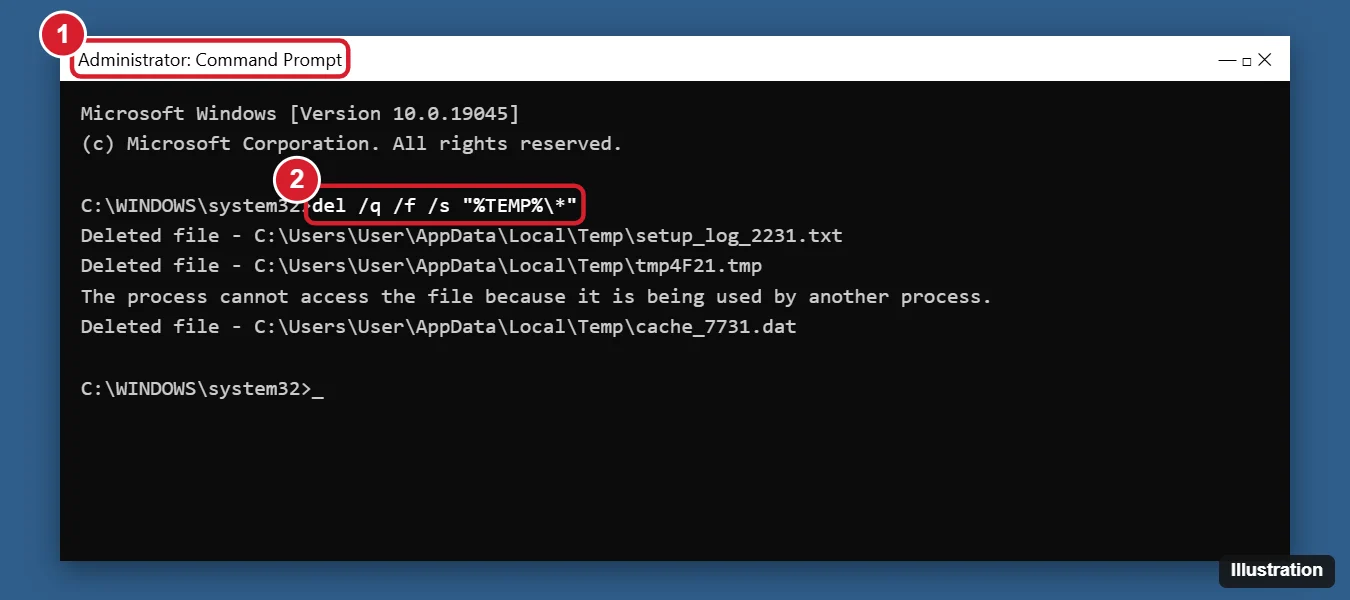
Method 2: Delete the %temp% folder
- Close as many apps as you can.
- Press Windows + R, type %temp%, and press Enter.
- Press Ctrl + A to select everything, then press Delete.
- If a file is in use, check Do this for all current items and click Skip.
- Empty the Recycle Bin to free the space.
For system-wide temp files, repeat with temp (without percent signs) in the Run box, which opens C:\Windows\Temp. You’ll need to click Continue for admin permission.
Method 3: Disk Cleanup
- Press Windows + R, type cleanmgr, and press Enter.
- Choose the C: drive and click OK.
- Click Clean up system files to include Windows Update leftovers.
- Check items like Temporary files, Windows Update Cleanup, and Delivery Optimization Files, then click OK > Delete Files.
After a big Windows update, Previous Windows installation(s) can take up many gigabytes. Deleting it removes the option to go back to your previous version.
Method 4: Turn on Storage Sense for automatic cleanup
- Go to Settings > System > Storage.
- Turn on Storage Sense.
- Click Configure Storage Sense or run it now to choose how often it runs and whether to clean the Recycle Bin and Downloads.
- Click Clean now to run it immediately.
What’s safe to delete?
| Item | Safe? | Notes |
|---|---|---|
| Temporary files | Yes | Apps recreate what they need |
| Thumbnails | Yes | Rebuilt automatically, folders may load slower at first |
| Delivery Optimization Files | Yes | Update files already installed |
| Windows Update Cleanup | Yes | You may not be able to uninstall some past updates |
| Downloads | Careful | Your personal files |
| Recycle Bin | Careful | Permanently deletes what’s in it |
Other ways to free up space
- Clear your browser cache. See how to clear cookies and cache on Windows 10.
- Uninstall apps you don’t use in Settings > Apps.
- For a full cleanup routine, see how to clean up Windows 10.
Frequently asked questions
Is it safe to delete everything in the temp folder?
Yes. Files in use are skipped automatically. Restart afterward if an app acts strangely.
Why do some temp files come back right away?
Apps create new temp files as they run. That’s normal.
Will clearing temp files speed up my PC?
It frees disk space and can help if your drive is nearly full, but it usually doesn’t make a big speed difference on its own.

Kermit Matthews is a freelance writer based in Philadelphia, Pennsylvania with more than a decade of experience writing technology guides. He has a Bachelor’s and Master’s degree in Computer Science and has spent much of his professional career in IT management.
He specializes in writing content about iPhones, Android devices, Microsoft Office, and many other popular applications and devices.