To delete temporary files in Windows 10 using Command Prompt, open Command Prompt as administrator, type del /q /f /s “%TEMP%\*”, and press Enter. This removes the files in your user Temp folder. To clear the Windows Temp folder too, run del /q /f /s “C:\Windows\Temp\*”. Some files will be skipped because they’re in use. That’s normal and safe to ignore.
Below you’ll find each command explained, how to remove leftover folders, how to run Disk Cleanup from the command line, and how to make a one-click cleanup file.
Before you start
- Close your apps first so fewer files are locked.
- Type the commands carefully. A typo in a del or rd command can delete the wrong folder. Always include the full Temp path shown here.
- Don’t delete the Prefetch folder. Windows uses it to start apps faster, and clearing it doesn’t free meaningful space.
Step 1: Open Command Prompt as administrator
- Click Start and type cmd.
- Right-click Command Prompt and choose Run as administrator.
- Click Yes on the User Account Control prompt.
Step 2: Delete your user temp files
Type this command and press Enter:
del /q /f /s “%TEMP%\*”
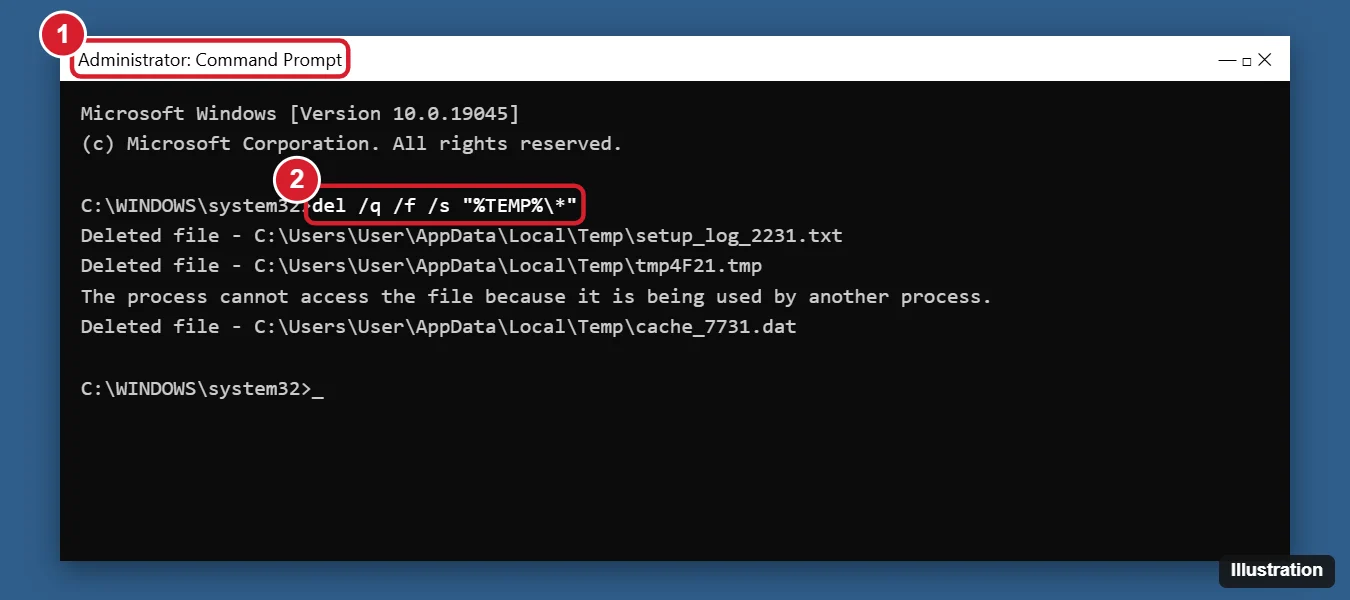
| Part | What it means |
|---|---|
| del | Delete files |
| /q | Quiet mode. Don’t ask to confirm each file. |
| /f | Force delete read-only files |
| /s | Include files in subfolders |
| %TEMP% | Your Temp folder, usually C:\Users\YourName\AppData\Local\Temp |
Step 3: Remove leftover empty folders
The del command removes files but leaves folders behind. To remove the subfolders too, run:
for /d %x in (“%TEMP%\*”) do rd /s /q “%x”
This removes every folder inside Temp, but not the Temp folder itself. If you put this line in a batch file, use %%x instead of %x.
Step 4: Clear the Windows Temp folder
Windows and installers also use C:\Windows\Temp. From the admin Command Prompt, run:
del /q /f /s “C:\Windows\Temp\*”
Then remove its leftover folders:
for /d %x in (“C:\Windows\Temp\*”) do rd /s /q “%x”
Step 5 (optional): Run Disk Cleanup from Command Prompt
Disk Cleanup can also remove Windows Update leftovers, thumbnails, and the Recycle Bin.
- Type cleanmgr /d C and press Enter to open Disk Cleanup for drive C.
- For a saved, repeatable cleanup, run cleanmgr /sageset:1, check the items you want, and click OK. After that, cleanmgr /sagerun:1 runs it without asking.
Make a one-click cleanup file
- Open Notepad and paste these lines:
del /q /f /s “%TEMP%\*”
for /d %%x in (“%TEMP%\*”) do rd /s /q “%%x” - Click File > Save as, set Save as type to All files, and name it cleantemp.bat.
- Double-click the file whenever you want to clear your temp files. Right-click it and choose Run as administrator if you add the Windows Temp lines.
Prefer not to use commands?
You can also delete temp files in Settings > System > Storage > Temporary files, or turn on Storage Sense to do it automatically. See how to delete Windows temp files for the full walkthrough.
Frequently asked questions
Is it safe to delete temp files in Windows 10?
Yes. Temp files are meant to be temporary. Windows and apps recreate any they need. Files in use are skipped automatically.
Why do I see “The process cannot access the file”?
A running app is using that file. Restart your PC and run the command again to delete more.
Can I use PowerShell instead?
Yes. In an admin PowerShell window, run Remove-Item “$env:TEMP\*” -Recurse -Force -ErrorAction SilentlyContinue.

Kermit Matthews is a freelance writer based in Philadelphia, Pennsylvania with more than a decade of experience writing technology guides. He has a Bachelor’s and Master’s degree in Computer Science and has spent much of his professional career in IT management.
He specializes in writing content about iPhones, Android devices, Microsoft Office, and many other popular applications and devices.