S mode is a locked-down configuration of Windows 11 that only runs apps from the Microsoft Store and uses Microsoft Edge as the browser. It’s common on budget laptops and school PCs. If you need Chrome, Firefox, Steam, or software downloaded from a website, you have to switch out of S mode. It’s free and takes a few minutes, but it’s a one-way change. This guide explains how to do it and what to check first.
Quick Answer
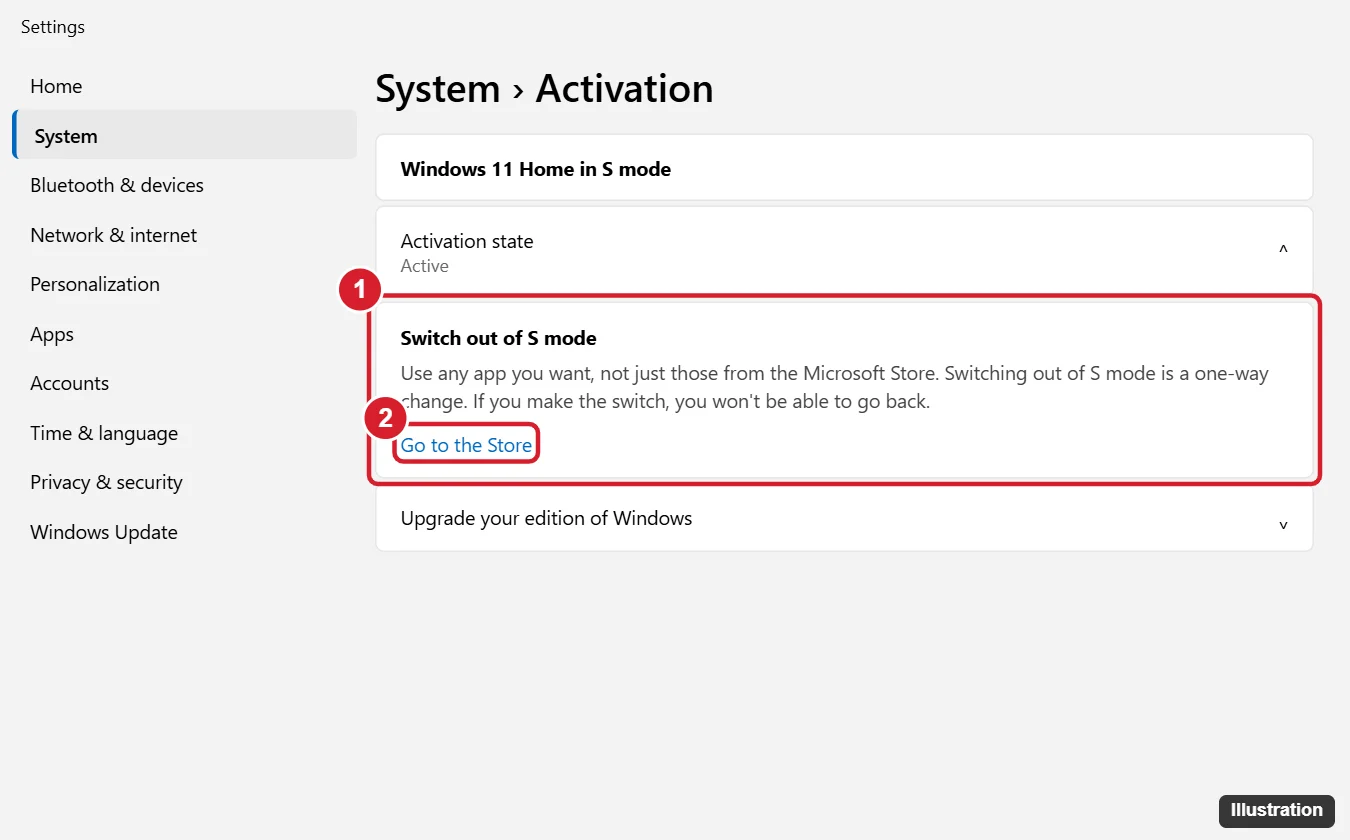
Open Settings > System > Activation. Expand Switch out of S mode and click Go to the Store. On the Switch out of S mode page in the Microsoft Store, click Get, then confirm. No restart or payment is required.
Before You Switch
- It’s permanent. You can’t go back to S mode later without a full reset or reinstall using S mode media.
- It’s free. Windows 11 Home in S mode becomes Windows 11 Home; Windows 11 Pro in S mode becomes Windows 11 Pro.
- Security tradeoff: S mode blocks most malware by only allowing Store apps. After switching, download software only from trusted sources and keep Windows Security on.
- School or work PCs: your organization may block the switch. Ask your IT administrator.
- You’ll need to sign in to the Microsoft Store with a Microsoft account.
Switch Out of S Mode in Windows 11
- Press Windows + I to open Settings.
- Go to System > Activation.
- Find Switch out of S mode (you might need to expand it) and click Go to the Store.
- Don’t click the link under Upgrade your edition of Windows; that’s for buying Pro.
- The Microsoft Store opens the Switch out of S mode page. Click Get (or Learn more and then Get).
- Confirm when prompted. A message says you’ve switched out of S mode.
- You can now install apps from anywhere. Check Settings > System > About; the edition no longer says “in S mode.”
How to Tell if You’re in S Mode
Go to Settings > System > About and look at Edition under Windows specifications. It says Windows 11 Home in S mode or Windows 11 Pro in S mode if S mode is on. You’ll also see a warning when you try to run an app from outside the Store.
After Switching
- Install your preferred browser and set it as default in Settings > Apps > Default apps.
- Turn on Smart App Control or keep Windows Security protections enabled.
- Consider setting Settings > Apps > Advanced app settings > Choose where to get apps to warn you before installing non-Store apps.
Troubleshooting
- Get button does nothing or the page won’t load: sign out and back in to the Microsoft Store, check your internet connection, restart the PC, and try again. Resetting the Store cache with wsreset (type it in the Start menu search and press Enter) often helps.
- “This PC is managed by your organization”: device management policies block the switch. Contact the school or employer that manages the PC.
- Error after clicking Get: install pending updates in Settings > Windows Update, then retry.
- Store not signed in: click the profile icon in the Store and sign in with a Microsoft account; you can switch back to a local account afterward.
Frequently Asked Questions
Will switching out of S mode delete my files?
No. Your files and apps stay as they are.
Does switching out of S mode slow down my PC?
Not by itself. Performance depends on which apps you install and run afterward.
Can I switch back to S mode?
Not through Settings. You’d need to reset the PC with the manufacturer’s recovery image that includes S mode, if available.
Summary
- Go to Settings > System > Activation.
- Under Switch out of S mode, click Go to the Store.
- Click Get on the Switch out of S mode page.
- Remember it’s free, permanent, and requires more care with downloads.

Kermit Matthews is a freelance writer based in Philadelphia, Pennsylvania with more than a decade of experience writing technology guides. He has a Bachelor’s and Master’s degree in Computer Science and has spent much of his professional career in IT management.
He specializes in writing content about iPhones, Android devices, Microsoft Office, and many other popular applications and devices.