Nintendo Switch Joy-Con controllers connect to a Windows 11 PC over Bluetooth, and with the right software they work as a gamepad in many PC games. Each Joy-Con pairs as a separate controller, so you’ll either use them individually or combine them into one controller with Steam or a free utility. This guide covers pairing, making games recognize them, and fixing common problems.
Quick Answer
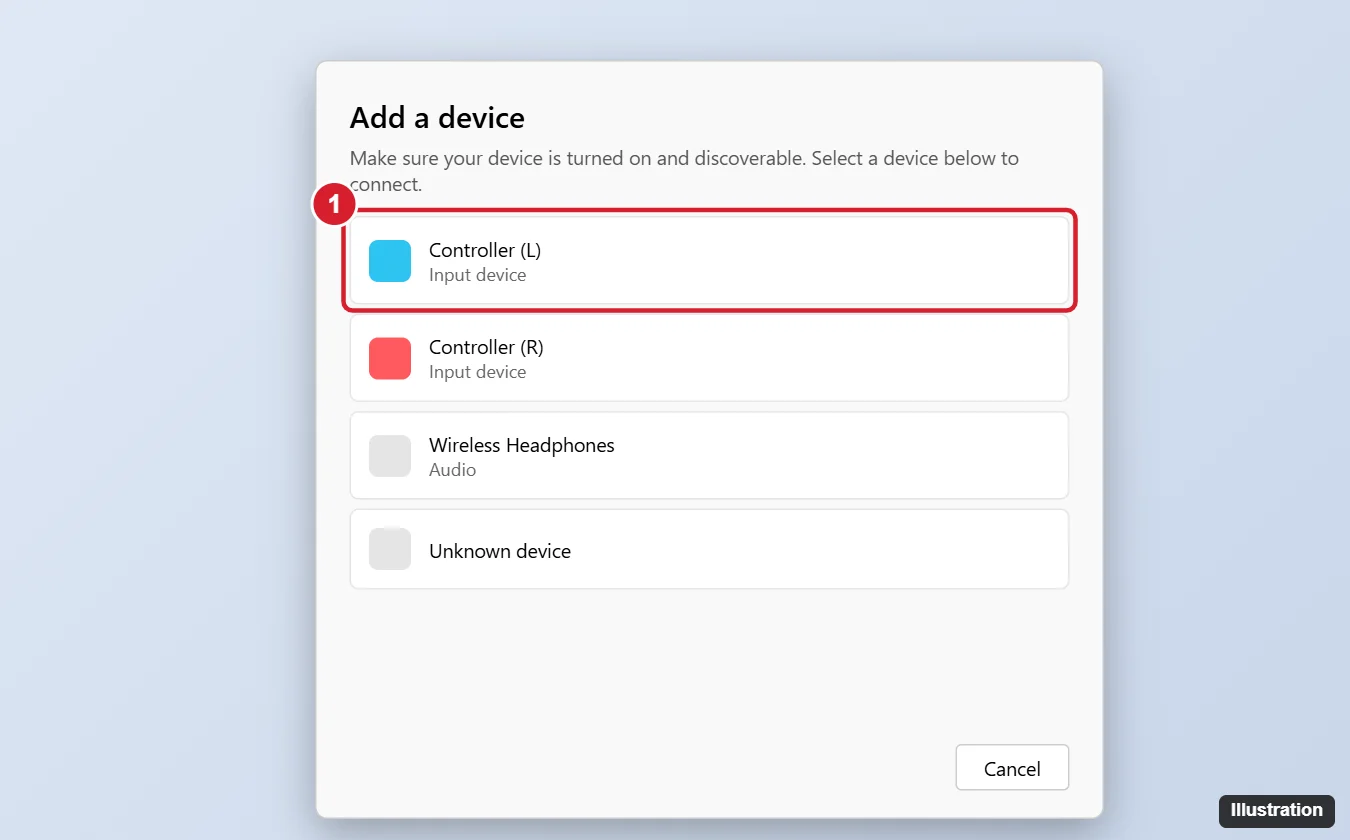
On the PC, open Settings > Bluetooth & devices > Add device > Bluetooth. On the Joy-Con, hold the small sync button on the rail (between SL and SR) until the green lights sweep back and forth. Select Joy-Con (L) or Joy-Con (R) in the list. Repeat for the other one. In Steam, turn on Switch controller support to use them in games.
What You Need
- A PC with Bluetooth (built-in or a USB Bluetooth adapter).
- Charged Joy-Con controllers. Disconnect them from the Switch first, or turn off the Switch, so they don’t reconnect to it.
Step 1: Pair Each Joy-Con
- On the PC, go to Settings > Bluetooth & devices and make sure Bluetooth is on.
- Click Add device, then Bluetooth.
- Slide the Joy-Con off the console (or remove any strap) and press and hold the small round sync button on the flat rail side for a few seconds. The green player lights start moving.
- Select Joy-Con (L) (or (R)) when it appears. Windows shows Connected.
- Repeat for the other Joy-Con.
The lights may keep flashing even after pairing; that’s normal on a PC.
Step 2: Use Them in Games
Steam (easiest)
- Open Steam > Settings > Controller.
- Turn on Enable Steam Input for Switch controllers (wording may vary).
- Steam detects the Joy-Cons. You can use each one as a small separate controller, or combine the pair into a single controller in Steam’s controller settings (often by pressing and holding the shoulder buttons on both).
Steam Input also works for non-Steam games you add to your Steam library.
Other games (third-party utility)
Games outside Steam often expect an Xbox controller. Free, open-source utilities (such as BetterJoy) combine both Joy-Cons and present them to Windows as an Xbox-style controller. Download only from the project’s official page and follow its setup instructions, which usually include installing a virtual controller driver.
Troubleshooting
- Joy-Con doesn’t show up: hold the sync button longer, move closer to the PC, and make sure it isn’t connected to the Switch.
- Connects then disconnects: remove it from Bluetooth & devices, restart the PC, and pair again. A USB Bluetooth 5 adapter often improves reliability.
- Input lag or dropouts: keep the PC’s Bluetooth free of interference; avoid USB 3 devices right next to the Bluetooth adapter.
- Want to use them on the Switch again: attach them to the console to re-pair.
- Newer Joy-Con 2 controllers for the latest Switch may not pair or work fully with Windows. Check for updates to Steam or your controller utility.
Frequently Asked Questions
Can I use Joy-Cons with a USB cable?
No. Joy-Cons connect wirelessly only. The Switch Pro Controller can use USB.
Do motion controls work?
In Steam, yes, for games that support gyro input through Steam Input. Most other games don’t use motion controls.
Can I use one Joy-Con as a full controller?
Yes, held sideways, for simple games with few buttons.
Summary
- Open Settings > Bluetooth & devices > Add device > Bluetooth.
- Hold the Joy-Con’s sync button and select it; repeat for the other.
- Enable Switch controller support in Steam, or use a utility for non-Steam games.
- Re-pair or use a better Bluetooth adapter if they disconnect.

Kermit Matthews is a freelance writer based in Philadelphia, Pennsylvania with more than a decade of experience writing technology guides. He has a Bachelor’s and Master’s degree in Computer Science and has spent much of his professional career in IT management.
He specializes in writing content about iPhones, Android devices, Microsoft Office, and many other popular applications and devices.