Windows 11 can warn you, or block you, when you install an app from outside the Microsoft Store. This is the app recommendation setting, and you can loosen or tighten it in Settings. Stricter options add protection on shared or family PCs.
Quick Answer
Open Settings, Apps, Advanced app settings, and choose an option under Choose where to get apps: Anywhere, Anywhere but let me know, Anywhere but warn me, or The Microsoft Store only.
How to Change App Recommendation Settings in Windows 11
- Open Settings with Windows+I and select Apps.
- Click Advanced app settings.
- Open the Choose where to get apps drop-down.
- Pick the level you want. The Microsoft Store only blocks other installers.
- Close Settings. The change applies to the next installation.
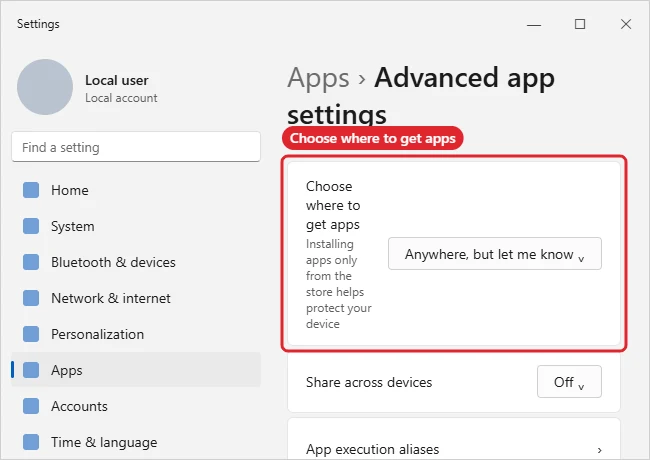
App Source Options
| Option | Effect |
|---|---|
| Anywhere | No warnings |
| Anywhere, but let me know if there’s a comparable app in the Microsoft Store | Suggests a store version |
| Anywhere, but warn me before installing an app that’s not from the Microsoft Store | Shows a warning first |
| The Microsoft Store only | Blocks other installers |
Which Option Should You Pick?
| Situation | Suggested setting |
|---|---|
| Your own PC, you install software from known developers | Anywhere, but let me know if there’s a comparable app in the Microsoft Store |
| Shared family PC | Anywhere, but warn me before installing an app that’s not from the Microsoft Store |
| PC for a child or someone less confident online | The Microsoft Store only, combined with a standard (non-administrator) account |
| Developer or IT workstation | Anywhere |
Whichever you choose, Microsoft Defender still scans downloads, and SmartScreen can still warn you about unrecognised files.
Looking for Start Menu “Recommended” Settings Instead?
“App recommendations” sometimes refers to the Recommended section of the Start menu, which shows recently added apps and files and, on some PCs, suggestions. Those options live elsewhere: open Settings, Personalization, Start and turn off Show recently added apps, Show recommended files in Start, File Explorer, and Jump Lists, or Show recommendations for tips, shortcuts, new apps, and more, depending on which items you want to hide. The exact switch names vary slightly between Windows 11 versions.
Where the Setting Is Missing or Locked
If Choose where to get apps is missing or greyed out, the PC may be managed by your work or school, or it may be in S mode, which only allows Store apps by design. In S mode you can switch out from Settings, System, Activation; the switch is free but one-way. See how to turn off S mode in Windows 11. On managed PCs, ask your IT team.
Troubleshooting
- The setting is missing: some Windows 11 builds show it only in certain regions or editions, or S mode may already limit apps to the store.
- The option is locked: your organization may manage it.
- To tidy up preinstalled apps, see how to remove bloatware from Windows 11.
- On Windows 10, read how to change app recommendation settings in Windows 10.
Frequently Asked Questions
Does this affect Smart App Control?
No. Smart App Control is a separate security feature in Windows Security.
Is Anywhere safe?
It is fine if you only download from trusted developers. Stricter options add protection for less experienced users.
Will this stop apps I already installed?
No. It only affects new installations.
Summary
- Open Settings, Apps, Advanced app settings.
- Open Choose where to get apps.
- Pick an option.
- Install apps as usual.

Kermit Matthews is a freelance writer based in Philadelphia, Pennsylvania with more than a decade of experience writing technology guides. He has a Bachelor’s and Master’s degree in Computer Science and has spent much of his professional career in IT management.
He specializes in writing content about iPhones, Android devices, Microsoft Office, and many other popular applications and devices.