To adjust list indents in Word, right-click any number or bullet in the list and choose Adjust List Indents. Set the Number position (where the number or bullet sits), the Text indent (where the text starts), and what follows the number (a tab, space or nothing). You can also drag the markers on the ruler, or use Increase and Decrease Indent on the Home tab for quick changes.
Quick Answer
Right-click the list > Adjust List Indents > set Number position and Text indent > OK. Or drag the ruler markers.
Steps to Adjust List Indents
- Click in the list, then right-click a number or bullet.
- Choose Adjust List Indents.
- Set Number position for the bullet or number, and Text indent for where the text begins.
- Choose what follows the number: Tab character, Space or Nothing.
- Click OK.
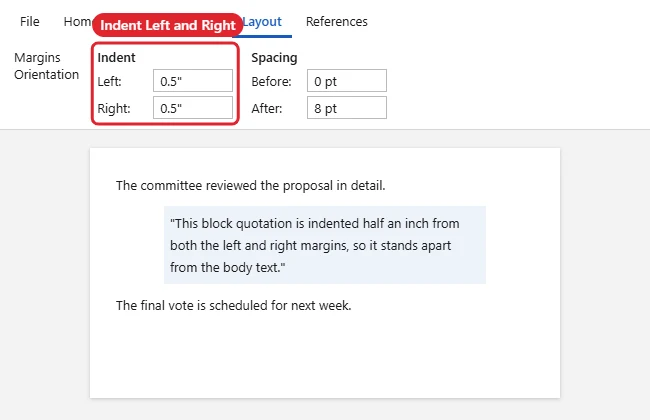
Other Ways to Change Indents
| Method | Use |
|---|---|
| Ruler markers | Drag the first-line and hanging indent triangles |
| Increase / Decrease Indent | Home tab, for whole levels quickly |
| Tab / Shift + Tab | Demote or promote a list item |
| Paragraph dialog | Home > Paragraph launcher for exact values |
If numbering restarts, see how to continue numbering in Word.
To move items between levels, see how to change list level in Word.
Troubleshooting
- Only one item changes: Adjust List Indents affects the whole level. Select the list first if needed.
- Gap after the number is too big: Change “Follow number with” from Tab to Space.
- Numbers themselves are wrong: See fixing numbering in Word.
- Bullets need formatting: See formatting bullet points.
Frequently Asked Questions
Why do my sub-items line up oddly?
Each list level has its own indents. Adjust each level, or set them in Define New Multilevel List.
Can I set indents for all new lists?
Modify the List Paragraph or list style so new lists use your settings.
What’s a hanging indent?
The text indent is larger than the number position, so wrapped lines line up under the text, not the number.
Summary
- Right-click the list.
- Choose Adjust List Indents.
- Set number position and text indent.
- Pick what follows the number.

Kermit Matthews is a freelance writer based in Philadelphia, Pennsylvania with more than a decade of experience writing technology guides. He has a Bachelor’s and Master’s degree in Computer Science and has spent much of his professional career in IT management.
He specializes in writing content about iPhones, Android devices, Microsoft Office, and many other popular applications and devices.