To set Bluebeam Revu as the default PDF app in Windows 11, open Settings > Apps > Default apps, type .pdf in the file type search box, select the current app, and choose Bluebeam Revu. You can also do it from inside Revu: run Revu as administrator, open Preferences > Admin, and select Open Default Programs next to the Default PDF viewer option.
Bluebeam’s own instructions note that you need to run Revu as an administrator for its Default PDF viewer setting to work. Setting Revu as the default also lets File Explorer preview PDFs with Revu.
Quick Answer
Settings > Apps > Default apps > search .pdf > select the app > Bluebeam Revu > Set default.
Method 1: Windows 11 Settings
- Press Windows + I and select Apps > Default apps.
- In Set a default for a file type or link type, type .pdf.
- Select the app shown under .pdf.
- Choose Bluebeam Revu from the list. If it’s not listed, select Choose an app on your PC and browse to Revu.exe (usually in C:\Program Files\Bluebeam Software\Bluebeam Revu).
- Select Set default.
Method 2: From Revu Preferences
- Right-click the Revu shortcut and choose Run as administrator.
- Open Preferences (Ctrl + K, or from the Revu menu).
- Select Admin in the left list.
- Next to Default PDF viewer, select Open Default Programs.
- In the Windows window that opens, choose Bluebeam Revu for .pdf files.
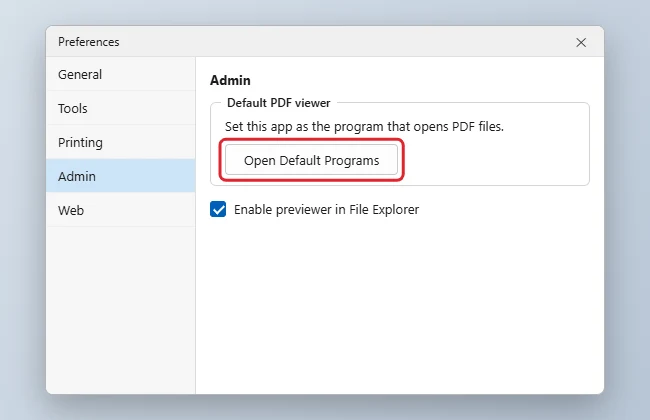
Bluebeam’s support article, Make Revu your default PDF viewer, covers Revu 20 and 21 on Windows 10 and 11.
Method 3: Right-Click a PDF
- Right-click any PDF in File Explorer.
- Choose Open with > Choose another app.
- Select Bluebeam Revu and select Always.
Open PDFs From Your Browser in Revu
Browsers open PDFs themselves by default. To send downloaded PDFs to Revu instead, turn off the browser’s built-in viewer (in Chrome, Settings > Privacy and security > Site settings > Additional content settings > PDF documents > Download PDFs; in Edge, Settings > Cookies and site permissions > PDF documents > Always download PDF files), then open the downloaded file.
Troubleshooting
- Windows switches back to Edge or another reader: Some PDF apps reclaim the default after updates. Set Revu again, and turn off “make default” prompts in the other app’s settings.
- Revu isn’t in the list: Repair the Revu installation from Settings > Apps > Installed apps, then try again.
- Work PC won’t keep the setting: Your IT department may control default apps through policy.
For other file types, see how to set default apps in Windows 11, or our general guide to changing the default PDF viewer.
Frequently Asked Questions
Does Bluebeam need to be the default to open PDFs?
No. You can open files from inside Revu or with Open with. The default only controls double-clicking.
Can I set it back to Edge later?
Yes. Repeat Method 1 and choose Microsoft Edge or another reader.
Summary
- Settings > Apps > Default apps > .pdf > Bluebeam Revu.
- Or use Revu Preferences > Admin > Open Default Programs (run as administrator).
- Turn off your browser’s PDF viewer to send web PDFs to Revu.

Kermit Matthews is a freelance writer based in Philadelphia, Pennsylvania with more than a decade of experience writing technology guides. He has a Bachelor’s and Master’s degree in Computer Science and has spent much of his professional career in IT management.
He specializes in writing content about iPhones, Android devices, Microsoft Office, and many other popular applications and devices.