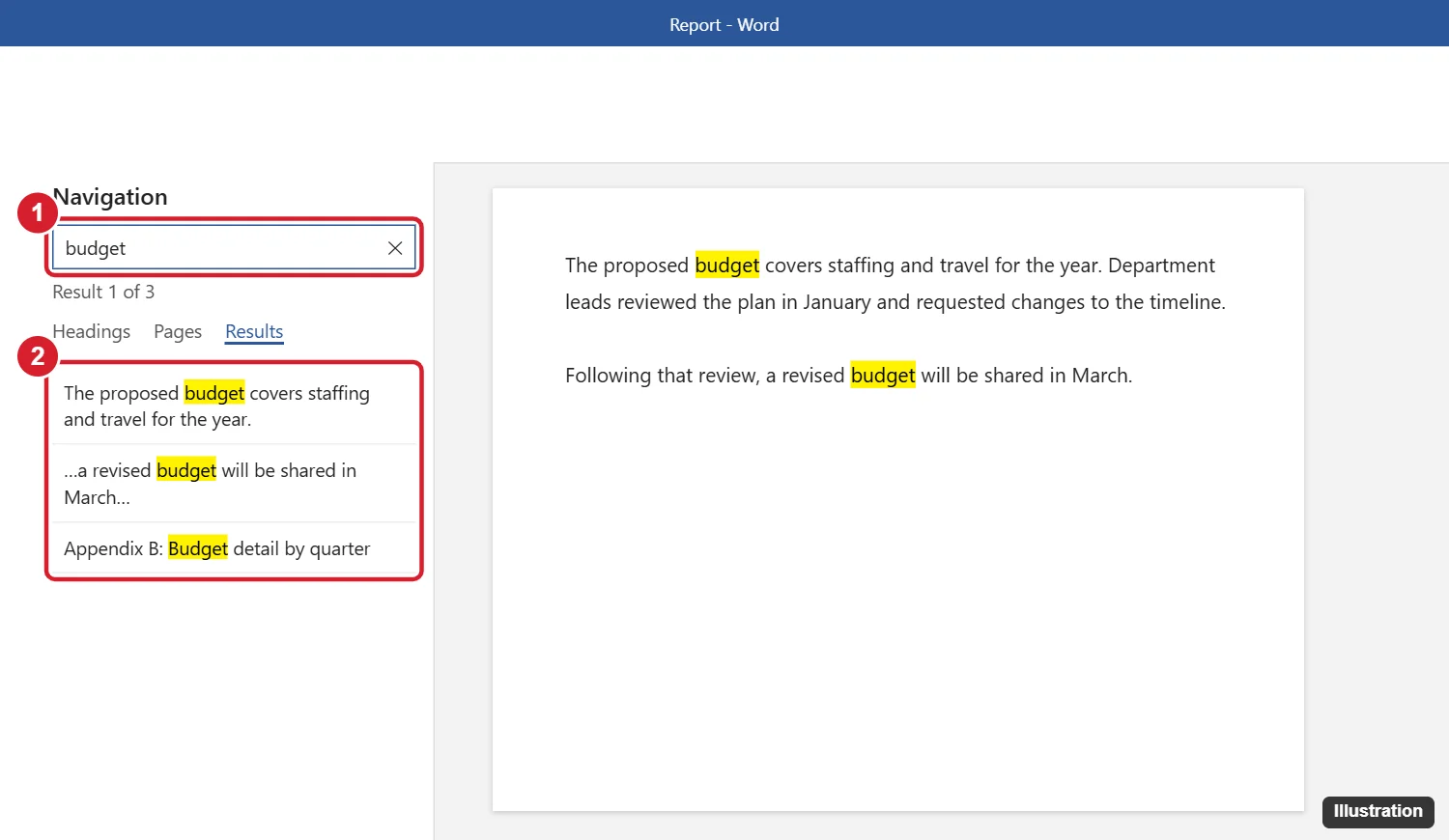
To search for a word in Word, press Ctrl + F (Command + F on a Mac). The Navigation pane opens on the left. Type the word or phrase, and Word highlights every match in the document and lists them under Results. Click a result to jump to it, or use the up and down arrows to move between matches. To find and change words, press Ctrl + H to open Find and Replace.
Here’s how to use basic and advanced search, match whole words or capital letters, and search on the web and mobile versions of Word.
How to search a Word document
- Press Ctrl + F, or click Find on the Home tab.
- Type your word or phrase in the search box.
- Click Results to see each match in context, then click one to jump there.
- Press Enter or the down arrow to go to the next match.
How to use Advanced Find
Advanced Find lets you match exact words and capitalization.
- Click the arrow next to Find on the Home tab and choose Advanced Find. Or click the magnifying glass in the Navigation pane search box.
- Click More >> to see search options.
- Check the options you need:
- Match case: Finds “Word” but not “word.”
- Find whole words only: Finds “art” but not “start.”
- Use wildcards: Lets you search patterns, like colo?r or <(pre)*>.
- Sounds like and Find all word forms: Useful for spelling variations and verb forms.
- Click Find Next. Or click Find In > Main Document to select every match at once.
How to find and replace words
- Press Ctrl + H.
- Type the word in Find what and the new word in Replace with.
- Click Replace to change one at a time, or Replace All to change every match.
Check the result with Ctrl + Z ready, especially when replacing short words that appear inside other words.
Search shortcuts at a glance
| Task | Windows | Mac |
|---|---|---|
| Find | Ctrl + F | Command + F |
| Find and Replace | Ctrl + H | Command + Shift + H |
| Go To (page, section, line) | Ctrl + G or F5 | Command + Option + G |
| Repeat last search | Shift + F4 | Command + G |
Search in Word for the web and mobile
- Word for the web: Press Ctrl + F or click Find on the Home tab. Use the options menu in the search pane for Match case and whole words.
- Word for iPhone, iPad, and Android: Tap the magnifying glass at the top, type your word, and use the arrows to move between matches.
Frequently asked questions
Why doesn’t Word find a word I know is there?
Check for typos, extra spaces, or Match case and whole-word settings left on in Advanced Find. Text inside text boxes, headers, or comments may also need a separate search.
How do I highlight all instances of a word?
In Advanced Find, click Reading Highlight > Highlight All.
Can I search for formatting, like bold text?
Yes. In Advanced Find, click More > Format > Font and choose the formatting to find.
How do I count how many times a word appears?
Search with Ctrl + F. The Navigation pane shows the number of results.

Kermit Matthews is a freelance writer based in Philadelphia, Pennsylvania with more than a decade of experience writing technology guides. He has a Bachelor’s and Master’s degree in Computer Science and has spent much of his professional career in IT management.
He specializes in writing content about iPhones, Android devices, Microsoft Office, and many other popular applications and devices.