You can run a Python script on Windows from Terminal, by double-clicking it, or from an editor. First install Python from python.org or the Microsoft Store. Python now recommends the Python install manager for Windows; the traditional full installer is being phased out from Python 3.14.
Quick Answer
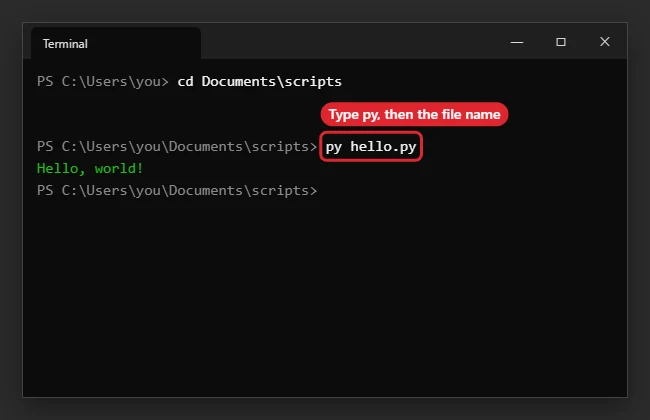
Open Terminal in the folder that holds your script and type py script.py (or python script.py), then press Enter.
How to Run a Python Script in Windows
- Install Python if you have not. Type py –version in Terminal to check.
- Save your code as a file ending in .py, for example hello.py.
- Open File Explorer, go to the folder, right-click an empty area and choose Open in Terminal.
- Type py hello.py and press Enter.
- If py is not found, try python hello.py.
- To pass arguments, add them after the file name, for example py hello.py input.txt.
Ways to Run a Script
| Method | Notes |
|---|---|
| py script.py in Terminal | Uses the Python launcher; picks the right version |
| python script.py | Works when Python is on PATH |
| Double-click the .py file | Window closes when the script ends |
| IDLE, Run, Run Module (F5) | Comes with Python |
| Code editor Run button | Needs the Python extension |
Related: how to install pygame.
See also running .sh scripts on Windows.
Troubleshooting
- Python opens the Microsoft Store instead: turn off the python.exe app execution alias in Settings, Apps, Advanced app settings.
- Not recognized as a command: add Python to PATH or use py.
- Window closes too fast: run from Terminal instead of double-clicking.
- Related: adding Python to PATH and checking if Python is installed.
Related: Split a word or string in Python.
Related: Fix the list assignment index out of range error in Python.
Related: Avoid TypeError when formatting strings in Python.
Related: Find your Python path in Windows.
Frequently Asked Questions
What is the difference between py and python?
py is the Windows launcher that finds installed versions. python runs whichever version is first on PATH.
How do I run a specific version?
Use py -3.13 script.py, for example.
Can I schedule a script?
Yes, with Task Scheduler.
Do I need admin rights?
No, not for running scripts.
Summary
- Install Python.
- Save the script.
- Open Terminal in its folder.
- Type py script.py.
- Press Enter.

Kermit Matthews is a freelance writer based in Philadelphia, Pennsylvania with more than a decade of experience writing technology guides. He has a Bachelor’s and Master’s degree in Computer Science and has spent much of his professional career in IT management.
He specializes in writing content about iPhones, Android devices, Microsoft Office, and many other popular applications and devices.