If typing python in Terminal gives a not recognized error on Windows 11, Windows cannot find Python on your PATH. With the current Python install manager, the fix is usually to use the py command or turn on its app execution aliases. With an older full installer, add Python’s folder and its Scripts folder to the Path environment variable.
Python now recommends the Python install manager for Windows; the traditional full installer is deprecated from Python 3.14.
If You Used the Python Install Manager
- Open Terminal and try py –version. If it works, you can run scripts with py instead of python.
- If python opens the Microsoft Store or is not found, open Start, search Manage app execution aliases, and make sure the Python (default) aliases are on. Toggle them off and on to refresh.
- If the installer offered to add a folder to PATH (by default \AppData\Local\Python\bin), accept it to get extra commands such as python3.14.
Add Python to PATH Manually (Full Installer)
- Find where Python is installed. In Terminal, run py -0p to list installed versions and their paths, or look in \AppData\Local\Programs\Python.
- Press Windows key + R, type sysdm.cpl and press Enter.
- On the Advanced tab, click Environment Variables.
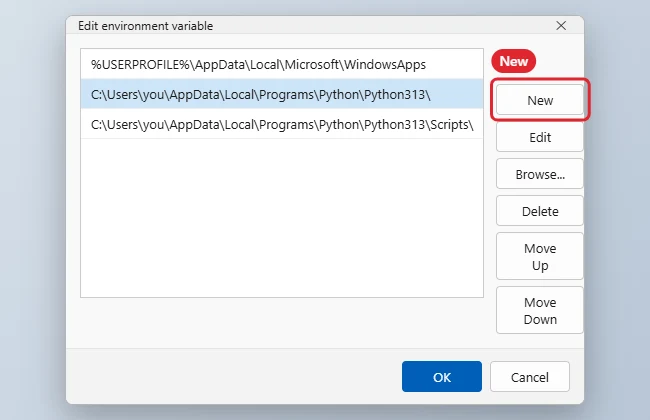
- Under User variables, select Path and click Edit.
- Click New and paste the Python folder, for example C:\Users\you\AppData\Local\Programs\Python\Python313\.
- Click New again and add the Scripts folder inside it, so pip works.
- Click OK on each window, then open a new Terminal and run python –version.
Troubleshooting
- python opens the Microsoft Store: turn off the Store alias in Manage app execution aliases, or install Python.
- The wrong version runs: the first matching entry in Path wins. Use Move Up, or run a specific version with py -3.13.
- pip is not recognized: add the Scripts folder, or run py -m pip instead.
- Changes do not apply: close and reopen Terminal. Some editors need a restart too.
Python’s official guide: Using Python on Windows. Next steps: how to run a Python script and how to check if Python is installed.
Related: Split a word or string in Python.
Related: Check if Python is installed.
Related: Find your Python path in Windows.

Kermit Matthews is a freelance writer based in Philadelphia, Pennsylvania with more than a decade of experience writing technology guides. He has a Bachelor’s and Master’s degree in Computer Science and has spent much of his professional career in IT management.
He specializes in writing content about iPhones, Android devices, Microsoft Office, and many other popular applications and devices.