Want to use an Android app or game on your Windows 10 PC, on a bigger screen with a keyboard and mouse? Windows 10 can’t run Android apps on its own, and Microsoft’s Windows Subsystem for Android (which was only ever for Windows 11) was discontinued in March 2025. You still have good options: Google’s own Play Games app for PC, mirroring apps from your phone with Phone Link, or an Android emulator. This guide compares them and walks through each.
Quick Answer
- For Android games: Install Google Play Games on PC from play.google.com/googleplaygames. It runs on Windows 10 (version 2004 or later) with 8 GB of RAM, an SSD, and hardware virtualization turned on.
- For apps already on your Android phone: Use the Phone Link app (supported Samsung and some other phones) to open phone apps on your PC.
- For any app: Install an Android emulator such as BlueStacks or the free Android Studio emulator.
Compare Your Options
| Option | Best for | Cost | Limits |
|---|---|---|---|
| Google Play Games on PC | Supported Android games | Free | Games only; not every game is available |
| Phone Link apps | Using your phone’s apps on the PC | Free | Needs a supported Android phone nearby; the app runs on the phone |
| BlueStacks and other emulators | Most apps and games from the Play Store | Free with ads, or paid tiers | Heavier on resources; install only from the official site |
| Android Studio emulator | Developers, testing apps | Free | Complex setup, needs a powerful PC |
Step 1: Turn On Virtualization
Google Play Games and most emulators need hardware virtualization.
- Open Task Manager (Ctrl + Shift + Esc), click Performance > CPU, and check that Virtualization says Enabled. If it’s disabled, turn on Intel VT-x or AMD-V (SVM) in your PC’s BIOS/UEFI settings.
- Press Windows + R, type optionalfeatures, and press Enter.
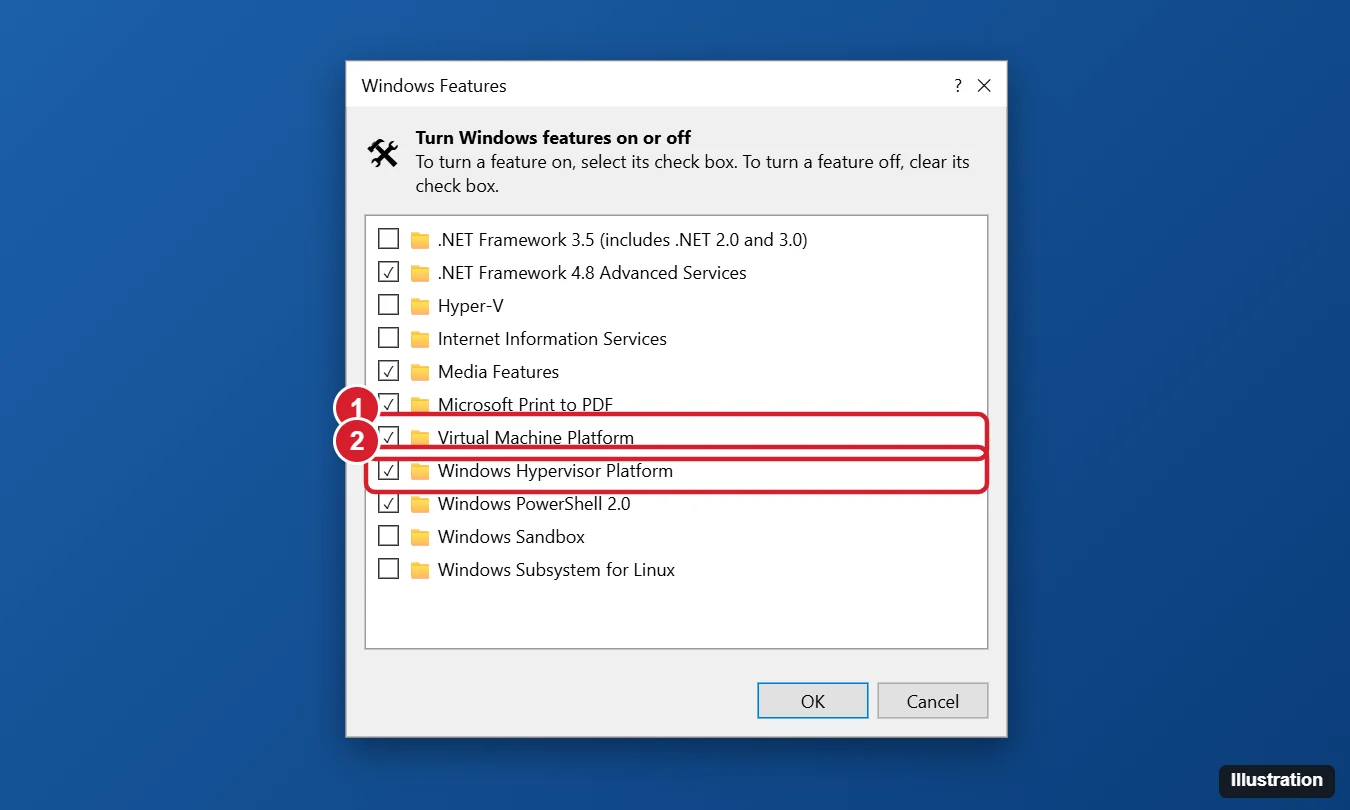
- Check Windows Hypervisor Platform and Virtual Machine Platform, click OK, and restart when asked.
Some emulators work better with these off, or have their own instructions. Follow the emulator’s setup guide if it asks you to change them.
Option 1: Google Play Games on PC
- Check the minimum requirements: Windows 10 version 2004 or later, an SSD with 10 GB free, 8 GB of RAM, a 4-core CPU, a GPU comparable to Intel UHD Graphics 630, an admin account, and virtualization turned on.
- Download the installer from play.google.com/googleplaygames and run it.
- Sign in with your Google account.
- Browse or search for a game and click Install. Progress and purchases sync with your phone for supported games.
Only games that developers have made available for PC appear, and regular apps (like messaging or banking apps) aren’t included.
Option 2: Phone Link (Use Your Phone’s Apps)
- Open Phone Link on your PC (it’s preinstalled; update it from the Microsoft Store).
- Choose Android and follow the prompts to link your phone with the Link to Windows app (preinstalled on many Samsung phones).
- Open the Apps section in Phone Link to see and open your phone’s apps in a window on your PC.
The Apps feature works only with supported phones (mainly Samsung and some other brands). The app actually runs on your phone and is mirrored to your PC, so your phone needs to be nearby, on, and connected.
Option 3: An Android Emulator
- Download an emulator from its official website, such as BlueStacks (bluestacks.com). Avoid download sites that bundle extra software.
- Run the installer and launch the emulator.
- Sign in to the Google Play Store inside the emulator with your Google account.
- Install apps as you would on a phone. Use the emulator’s key-mapping tools to control games with a keyboard, mouse, or controller.
Emulators need decent hardware: a quad-core CPU, 8 GB or more of RAM, and an SSD give the best experience. Some banking and streaming apps refuse to run on emulators for security reasons.
Option 4: Android Studio Emulator (Developers)
Download Android Studio from developer.android.com, open Device Manager, create a virtual device with a Google Play system image, and start it. It’s free and official, but it’s designed for app testing and uses a lot of resources.
Installing APK Files
Most emulators let you drag and drop an APK file to install it. Only install APKs from trusted sources, because apps outside the Play Store aren’t checked by Google and may contain malware.
For Android games on Windows, use Google Play Games for PC.
On Windows 11, see how to run Android apps on Windows 11 today.
Frequently Asked Questions
Can Windows 10 run Android apps natively?
No. Windows 10 never supported the Windows Subsystem for Android, and Microsoft ended that feature on Windows 11 in March 2025.
Is it safe to use an Android emulator?
Well-known emulators downloaded from their official sites are generally safe. Be careful with free versions that show ads or bundle offers during installation.
Summary
- Turn on virtualization and the Hypervisor/Virtual Machine Platform features.
- Use Google Play Games on PC for supported games.
- Use Phone Link to open apps from a supported Android phone.
- Use an emulator like BlueStacks for most other apps.

Kermit Matthews is a freelance writer based in Philadelphia, Pennsylvania with more than a decade of experience writing technology guides. He has a Bachelor’s and Master’s degree in Computer Science and has spent much of his professional career in IT management.
He specializes in writing content about iPhones, Android devices, Microsoft Office, and many other popular applications and devices.