Vi and Vim replace text with the substitute command, :s. With one short command you can replace a word on the current line, throughout the whole file, in a range of lines, or one match at a time with confirmation. This guide explains the syntax, gives ready-to-use examples, and covers special characters, whole-word matching and undo. The commands work in vi, Vim and Neovim on Linux, macOS and Windows.
Quick Answer
Press Esc to make sure you’re in Normal mode, then type :%s/old/new/g and press Enter. This replaces every “old” with “new” in the whole file. Add c (:%s/old/new/gc) to confirm each change.
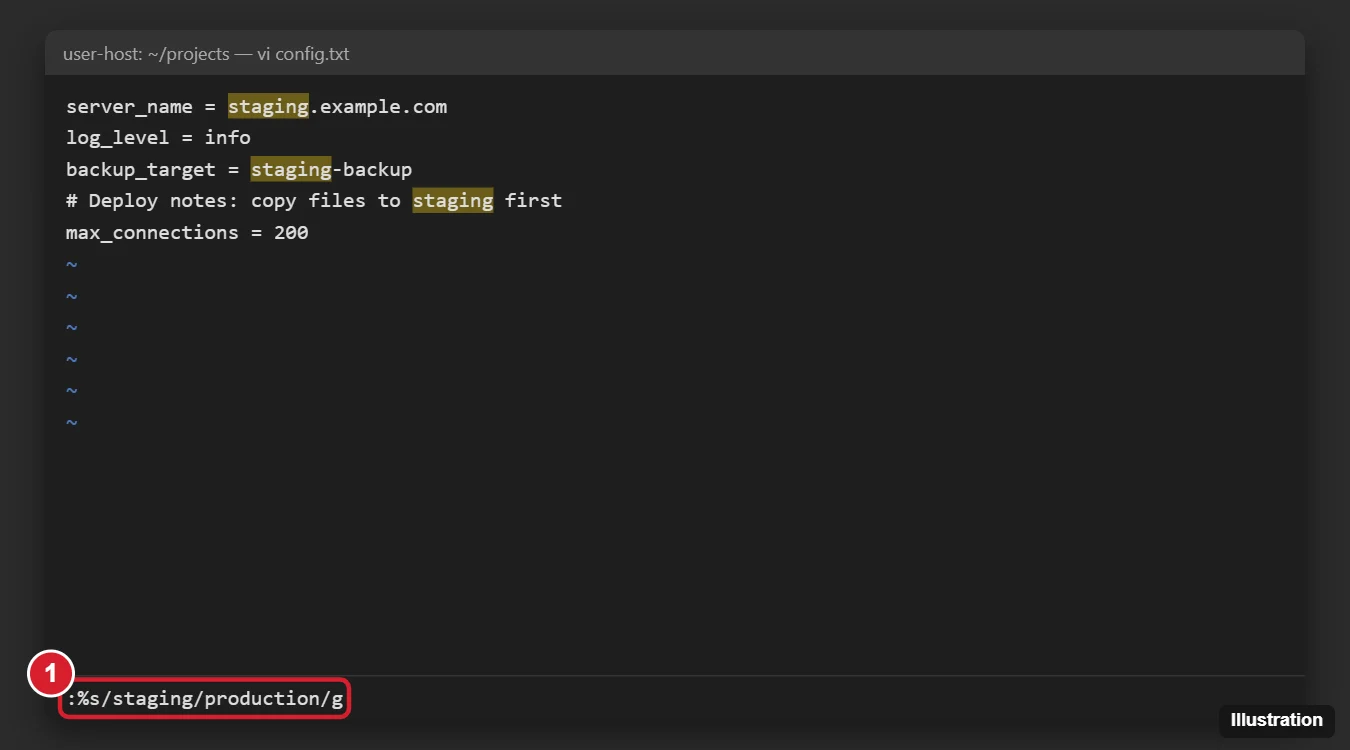
The Substitute Command Syntax
:[range]s/pattern/replacement/[flags]- range: which lines to search. % means the whole file; nothing means the current line.
- pattern: the text (or regular expression) to find.
- replacement: the new text.
- flags: g = every match on each line (not just the first), c = confirm each, i = ignore case, I = match case.
Common Examples
| Command | What it does |
|---|---|
| :s/old/new/ | First match on the current line |
| :s/old/new/g | All matches on the current line |
| :%s/old/new/g | All matches in the file |
| :%s/old/new/gc | All matches in the file, asking each time |
| :10,20s/old/new/g | Lines 10 to 20 |
| :.,$s/old/new/g | From the current line to the end |
| :%s/old/new/gi | Whole file, ignoring case |
| :%s/\<old\>/new/g | Whole words only (not “golden”) |
Confirm Each Replacement
With the c flag, Vim highlights each match and asks replace with new (y/n/a/q/l/^E/^Y)?
- y replace this one, n skip it
- a replace all remaining, q quit
- l replace this one and stop
Replace in a Visual Selection
- Press V (line-wise Visual mode) and move to select lines.
- Type :. Vim fills in :'<,’>.
- Complete it: :'<,’>s/old/new/g and press Enter.
Special Characters
- Slashes in paths: use a different delimiter, such as :%s#/usr/local#/opt#g.
- Characters with special meaning (. * [ ] ^ $ \) need a backslash in the pattern, for example :%s/1\.0/2.0/g.
- & in the replacement inserts the matched text: :%s/error/[&]/g turns “error” into “[error]”.
- Delete a word: leave the replacement empty, :%s/old//g.
- Replace with a new line: use \r in the replacement, :%s/, /,\r/g.
Quick Replace Without :s
- cw changes from the cursor to the end of the word. Type the new word and press Esc.
- Search with /old, change one match with cgn, type the new word, press Esc, then press . to repeat on the next match (Vim only).
Undo, Save and Quit
- u undoes the whole substitution; Ctrl + r redoes it.
- :w saves, :wq saves and quits, :q! quits without saving.
Replace Across Multiple Files (Vim)
:args *.txt
:argdo %s/old/new/ge | update
The e flag suppresses errors in files without a match, and update saves changed files. For quick batch edits outside the editor, sed -i ‘s/old/new/g’ file.txt does the same on Linux.
Frequently Asked Questions
Why did only the first word on each line change?
You left off the g flag. Add it to replace every match on each line.
How do I see how many matches there are first?
Run :%s/old//gn. The n flag counts matches without replacing.
Is it different in plain vi?
The basic :s syntax is the same. Some extras, like \< \> word boundaries, cgn and highlighting, are Vim features.
Summary
- Press Esc.
- Type :%s/old/new/g and press Enter.
- Add c to confirm each change, or a range to limit lines.
- Press u to undo, :wq to save.

Kermit Matthews is a freelance writer based in Philadelphia, Pennsylvania with more than a decade of experience writing technology guides. He has a Bachelor’s and Master’s degree in Computer Science and has spent much of his professional career in IT management.
He specializes in writing content about iPhones, Android devices, Microsoft Office, and many other popular applications and devices.