If you’ve added an old system drive to a new PC, or you have a second copy of Windows from a dual-boot setup, you may want to remove that extra Windows to free up space. It’s safe as long as you remove the copy you’re not currently running. This guide shows how to wipe Windows from a secondary drive, remove a dual-boot entry, and completely erase a drive before selling it.
Quick Answer
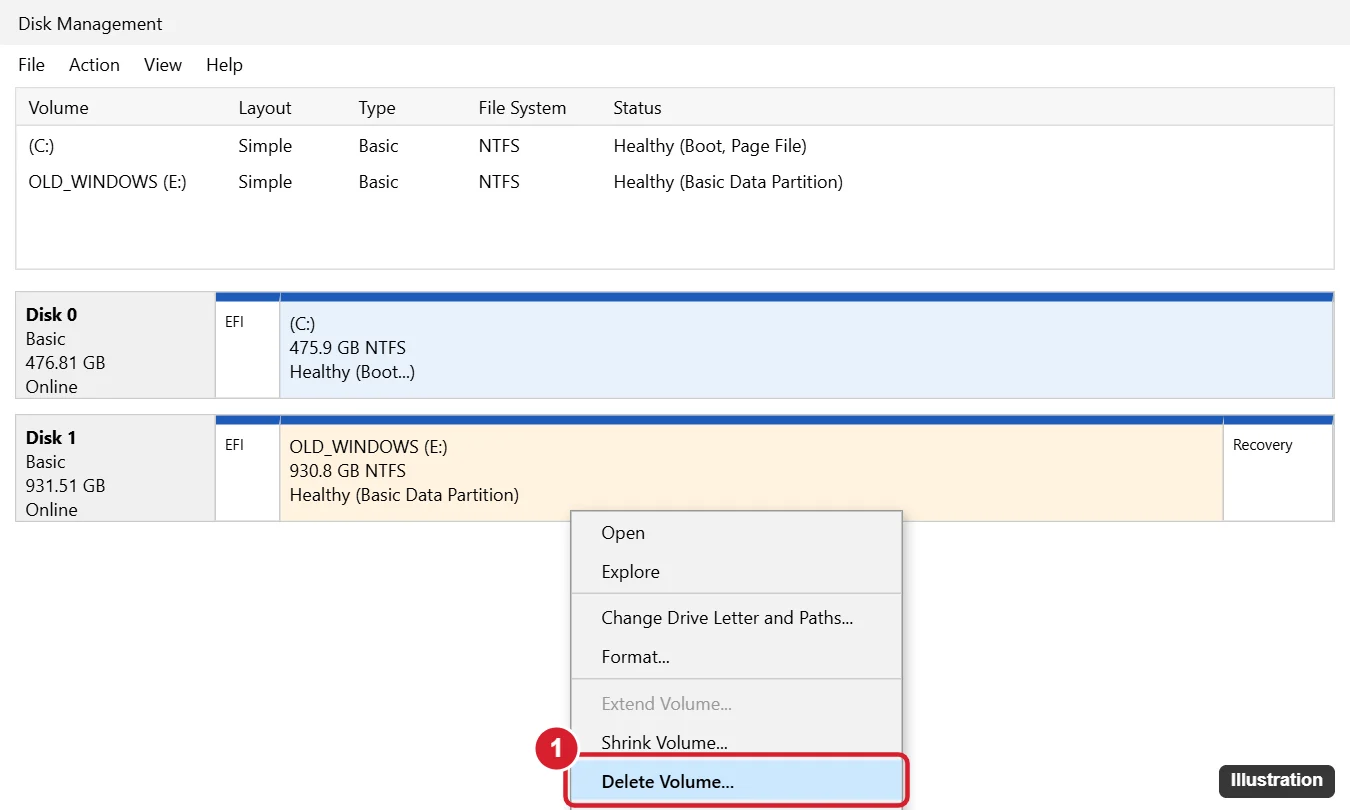
Back up any files you need from the old drive. Open Disk Management (right-click Start), right-click each partition on the old drive (not the C: drive you’re running) and choose Delete Volume. Then right-click the unallocated space and choose New Simple Volume to reuse the drive for storage.
Before You Start
- Identify the right drive: in Disk Management, the drive you’re running from shows (Boot) next to C:. The old Windows drive has a different letter, like D: or E:.
- Back up documents and photos from the old drive’s Users folder.
- If the old drive is BitLocker-encrypted, you’ll need its recovery key to read files, but not to delete partitions.
Method 1: Delete Windows From a Secondary Drive (Disk Management)
- Right-click Start and choose Disk Management.
- Find the old drive (for example Disk 1) in the lower pane.
- Right-click each partition on that drive (EFI, Recovery, the main Windows partition) and choose Delete Volume, then Yes. EFI and Recovery partitions on a secondary disk can be deleted; if Disk Management won’t allow it, use DiskPart below.
- When the whole disk shows Unallocated, right-click it and choose New Simple Volume, follow the wizard, and format it as NTFS.
Method 2: DiskPart (Removes Protected Partitions)
- Open Command Prompt as administrator and run diskpart.
- Run list disk and identify the old drive by its size.
- Run select disk 1 (use the correct number, double-check!).
- Run clean to remove all partitions on that disk.
- Run create partition primary, then format fs=ntfs quick, then assign.
DiskPart’s clean command acts immediately with no undo. Selecting the wrong disk will erase it.
Method 3: Remove a Dual-Boot Windows Installation
- Boot into the copy of Windows you want to keep.
- Press Windows + R, type msconfig, and open the Boot tab.
- Select the other Windows entry (not “Current OS”) and click Delete, then OK and restart.
- Open Disk Management and delete the partition that held the other Windows.
- Extend your current partition into the freed space if it’s adjacent (right-click C: > Extend Volume).
Method 4: Erase a Drive Completely Before Selling
- Reset this PC with Remove everything and Clean data for the PC’s main drive.
- For a secondary drive, format it with a full format (uncheck Quick Format), or use DiskPart clean all, which writes zeros to the whole disk (slow).
- For SSDs, the manufacturer’s secure-erase tool is the most thorough option.
Remove the Leftover Windows.old Folder
If you mean the old Windows copy left after an upgrade, delete the Windows.old folder with Settings > System > Storage > Temporary files > Previous Windows installation(s), not by deleting partitions.
Troubleshooting
- Delete Volume grayed out: the partition is in use (you may be booted from it) or protected; use DiskPart on the secondary disk.
- PC won’t boot after removing a drive: the boot files were on the old drive. Reconnect it, or repair startup with Windows installation media (Startup Repair or bcdboot).
- Access denied to old user folders: right-click the folder > Properties > Security > Advanced and take ownership to copy files.
Frequently Asked Questions
Can I delete old Windows folders instead of formatting?
You can, but you’ll often need to take ownership of system folders. Formatting the old drive is faster and cleaner.
Will this affect my current Windows?
Not if you only delete partitions on the old drive. Always check for the (Boot) label before deleting anything.
Does this work on Windows 11?
Yes. Disk Management, DiskPart and msconfig work the same.
Summary
- Back up files from the old drive.
- Delete the old drive’s partitions in Disk Management or with DiskPart clean.
- Create a new volume to reuse the drive.
- Remove dual-boot entries in msconfig.

Kermit Matthews is a freelance writer based in Philadelphia, Pennsylvania with more than a decade of experience writing technology guides. He has a Bachelor’s and Master’s degree in Computer Science and has spent much of his professional career in IT management.
He specializes in writing content about iPhones, Android devices, Microsoft Office, and many other popular applications and devices.