In Windows 11, File Explorer opens to Home (called Quick access in earlier versions), which shows pinned folders, recent files and, for Microsoft accounts, recommended cloud files. If you’d rather not have it, you can make File Explorer open to This PC, stop it from showing recent and frequent items, unpin folders, and, with a registry change, remove Home from the navigation pane entirely. This guide covers each option.
Quick Answer
In File Explorer, click ⋯ > Options. Set Open File Explorer to This PC, uncheck Show recently used files and Show frequently used folders under Privacy, click Clear, then OK.
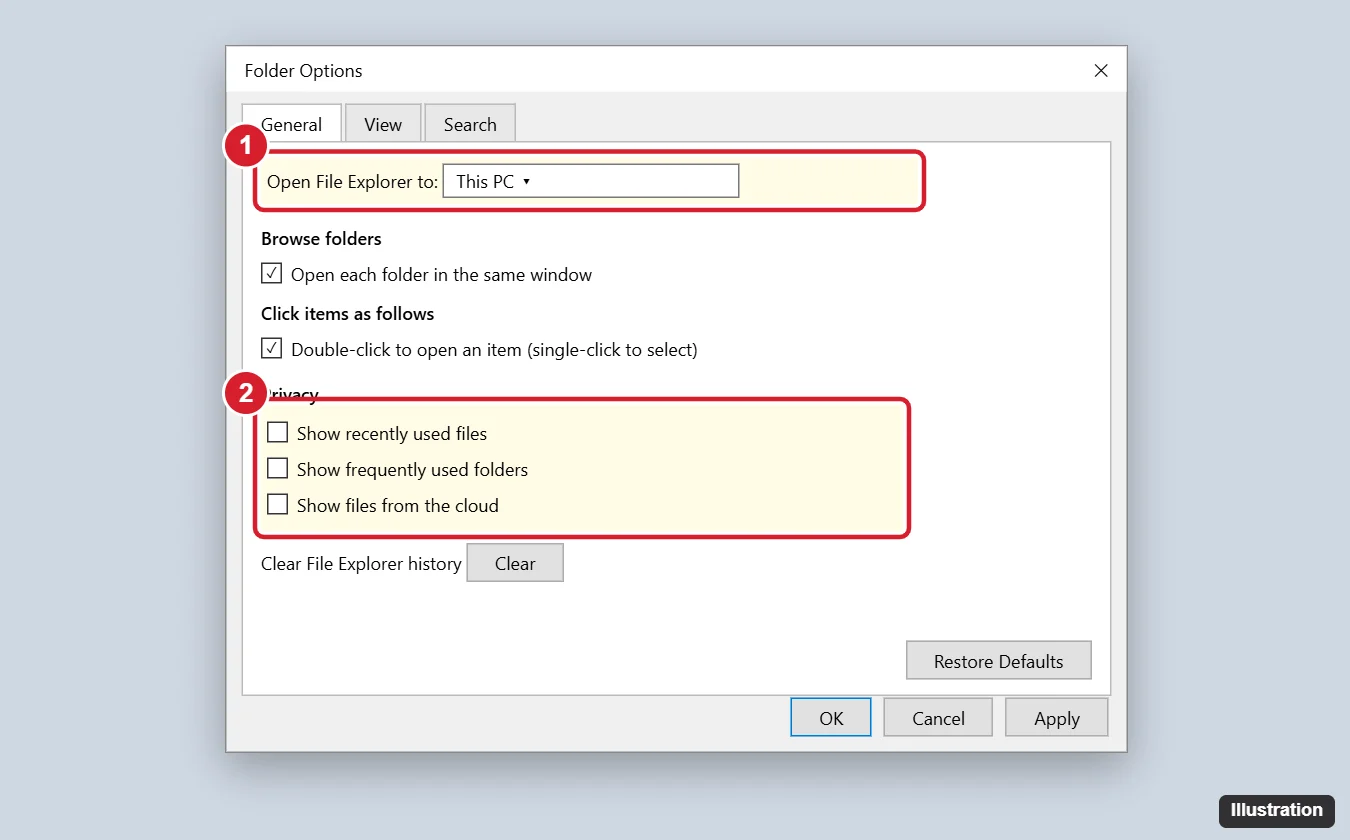
Step 1: Open File Explorer to This PC
- Open File Explorer (Windows + E).
- Click ⋯ (See more) on the command bar and choose Options.
- On the General tab, set Open File Explorer to This PC.
Step 2: Stop Showing Recent and Frequent Items
- In the same Options window, under Privacy, uncheck Show recently used files, Show frequently used folders and, if present, Show files from the cloud (named after your cloud service).
- Click Clear next to Clear File Explorer history.
- Click OK.
You can also turn off recent items everywhere in Settings > Personalization > Start by turning off Show recently opened items in Start, Jump Lists, and File Explorer.
Step 3: Unpin Folders
In the navigation pane or on Home, right-click a pinned folder and choose Unpin from Quick access. Default folders like Desktop, Downloads and Documents can be unpinned too.
Step 4 (Advanced): Remove Home From the Navigation Pane
Windows 11 has no setting to hide Home, but a registry change removes it. Back up the registry first.
- Press Windows + R, type regedit and press Enter.
- Go to HKEY_LOCAL_MACHINE\SOFTWARE\Microsoft\Windows\CurrentVersion\Explorer\Desktop\NameSpace.
- Find the key {f874310e-b6b7-47dc-bc84-b9e6b38f5903} (Home). Right-click it and choose Export to back it up, then Delete.
- Restart File Explorer or the PC.
To restore Home, double-click the exported .reg file. Windows updates sometimes restore it automatically. Make sure Step 1 is done first, or File Explorer may open to an error.
Remove Gallery Too
Windows 11’s Gallery entry can be removed the same way with the key {e88865ea-0e1c-4e20-9aa6-edcd0212c87c} under the same NameSpace path, or hidden in some builds by right-clicking it and choosing Show Gallery to uncheck it (where available).
Troubleshooting
- Recent files still appear: click Clear again and restart File Explorer in Task Manager.
- Home came back after an update: repeat Step 4.
- Work PC settings grayed out: your organization may manage them by policy.
Frequently Asked Questions
Is removing Quick access safe?
Changing Folder Options is completely safe. Registry edits are low risk if you back up the key first.
Will removing Home delete my files?
No. Home only shows shortcuts; your files stay where they are.
How do I do this on Windows 10?
Use Folder Options (View > Options) the same way. The Windows 10 registry method uses a HubMode DWORD set to 1 under HKEY_LOCAL_MACHINE\SOFTWARE\Microsoft\Windows\CurrentVersion\Explorer.
Summary
- File Explorer > ⋯ > Options.
- Open File Explorer to This PC.
- Uncheck recent and frequent items and click Clear.
- Optionally delete the Home registry key to remove it from the pane.

Kermit Matthews is a freelance writer based in Philadelphia, Pennsylvania with more than a decade of experience writing technology guides. He has a Bachelor’s and Master’s degree in Computer Science and has spent much of his professional career in IT management.
He specializes in writing content about iPhones, Android devices, Microsoft Office, and many other popular applications and devices.