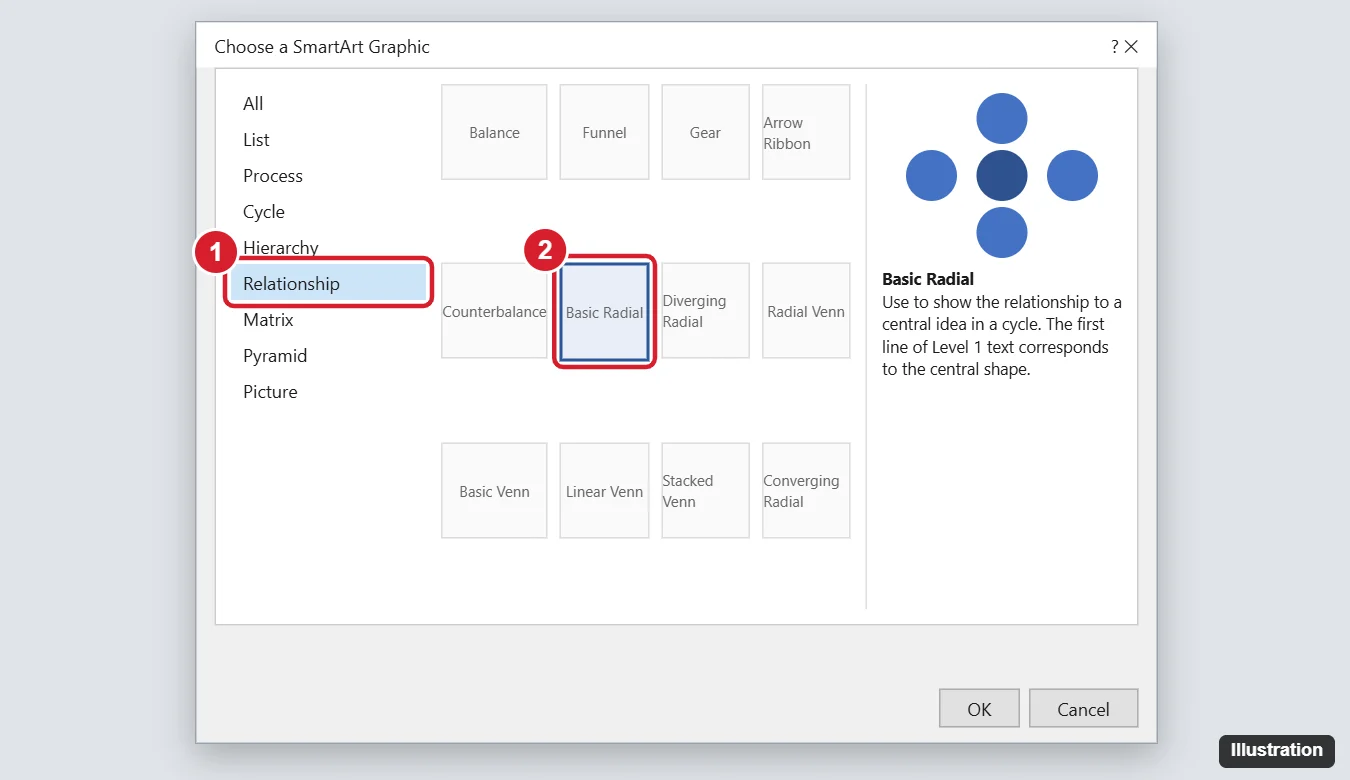
To make a spider diagram in Word, click Insert > SmartArt, choose the Relationship (or Cycle) category, pick Basic Radial, and click OK. Type your main idea in the center circle and your subtopics in the surrounding circles, using the Text Pane to add or remove branches. For a freeform spider diagram with branches of different lengths, draw it yourself with Insert > Shapes (ovals for ideas and lines or elbow connectors for legs).
This guide covers both methods step by step, how to add sub-branches, style the diagram, and export it, plus tips for brainstorming and study notes.
What is a spider diagram?
A spider diagram (also called a mind map or concept map) places one central idea in the middle with related ideas branching out like spider legs. It’s useful for brainstorming, planning essays, studying, and organizing projects.
Method 1: Use SmartArt (fastest)
- Click where you want the diagram.
- Go to Insert > SmartArt.
- Choose Relationship (or Cycle) and select Basic Radial. Diverging Radial is a good alternative with arrows.
- Click OK.
Add your ideas
- Click the arrow on the left edge of the SmartArt to open the Text Pane.
- Type the main topic on the first line.
- Press Enter, then Tab to add each surrounding idea. Press Enter again for more branches.
- Delete a line to remove a branch.
Basic Radial supports one ring of branches. For sub-branches, add small shapes and lines manually next to the SmartArt, or use Method 2.
Style it
- On the SmartArt Design tab, choose Change Colors and a SmartArt Style.
- Select individual circles and use Format > Shape Fill to color-code topics.
- Drag the corner handles to resize the whole diagram.
Method 2: Draw it with shapes (most flexible)
- Go to Insert > Shapes > New Drawing Canvas (at the bottom of the menu) so the diagram stays together.
- Draw an Oval in the center for the main idea. Right-click it and choose Add Text.
- Draw smaller ovals or rectangles around it for subtopics.
- Choose Insert > Shapes > Line or an Elbow Connector, and drag from the center shape’s edge to each subtopic. Connectors attach to connection points so they move with the shapes.
- Add sub-branches the same way from each subtopic.
- Select all shapes (hold Shift and click), right-click, and choose Group to move them as one.
Tips for a clear spider diagram
- Keep labels to one to three words.
- Use one color per main branch and lighter shades for its sub-branches.
- Switch to Landscape orientation (Layout > Orientation) for large diagrams.
- Use Align and Distribute on the Shape Format tab to space shapes evenly.
Save or share the diagram
Right-click the grouped diagram or SmartArt and choose Save as Picture to export it as PNG or JPEG, or save the whole document as PDF with File > Save As.
Wide diagrams fit better on a landscape page. See making landscape the default in Word.
When the diagram is finished, group its shapes to keep it in one piece.
Frequently asked questions
Does Word have a mind map template?
Word doesn’t include a dedicated mind map template, but SmartArt radial layouts and templates on Microsoft’s template site can serve the purpose.
Can I make a spider diagram in Word for the web?
Word for the web supports basic SmartArt editing and shapes, but drawing tools are more limited than in the desktop app.
How do I add more than six branches?
Add more lines in the SmartArt Text Pane; Basic Radial adds circles as you add lines, though very many branches get crowded.

Kermit Matthews is a freelance writer based in Philadelphia, Pennsylvania with more than a decade of experience writing technology guides. He has a Bachelor’s and Master’s degree in Computer Science and has spent much of his professional career in IT management.
He specializes in writing content about iPhones, Android devices, Microsoft Office, and many other popular applications and devices.