Jupyter Notebook lets you write and run Python code in your web browser, mixing code, results, charts and notes in one document. It’s a staple for data analysis, teaching and machine learning. On Windows 10 or Windows 11 you can install it with pip after installing Python, or get it bundled with the Anaconda distribution. This guide walks through both methods, how to launch it in the right folder, and how to fix “‘jupyter’ is not recognized” and other common errors.
Quick Answer
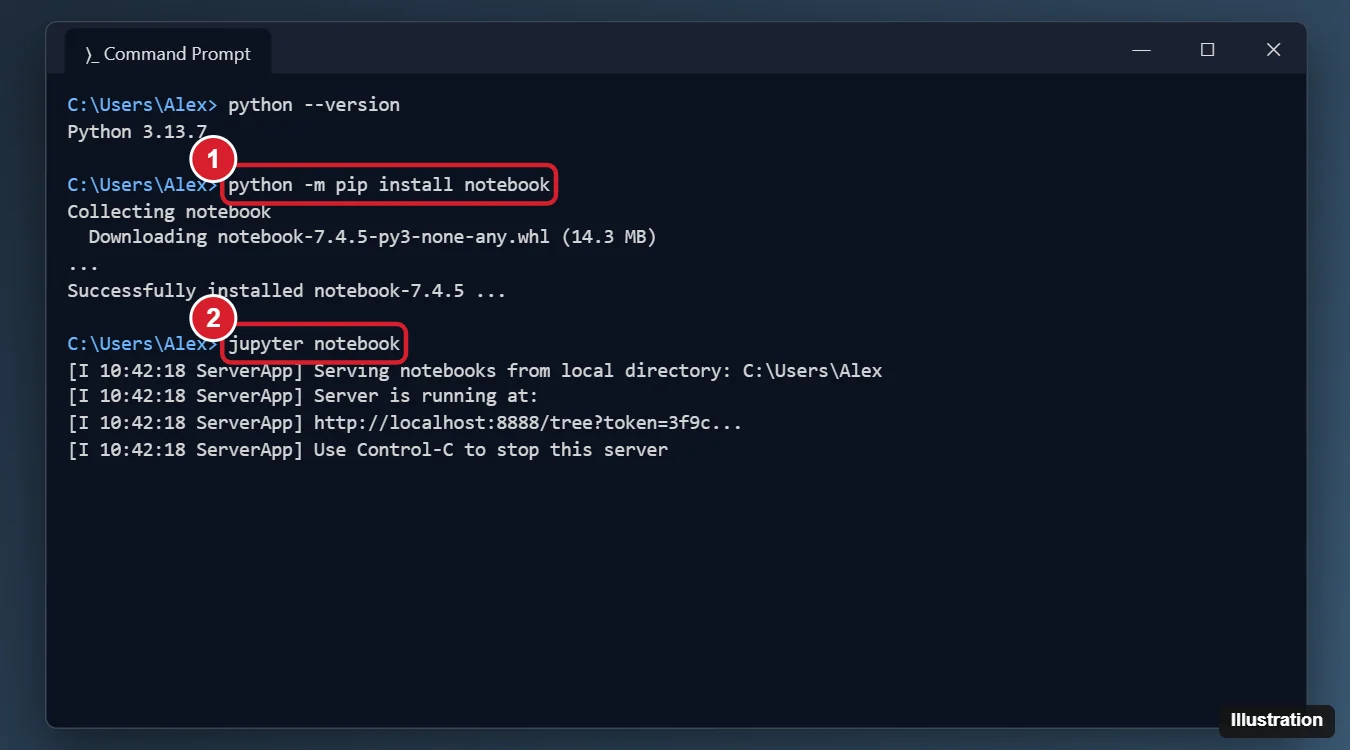
Install Python from python.org (check Add python.exe to PATH), then open Command Prompt and run python -m pip install notebook. Start it with jupyter notebook; it opens in your browser at a localhost address.
Method 1: Install With pip (Lightweight)
Step 1: Install Python
- Go to python.org/downloads and download the latest Python 3 installer for Windows.
- Run it and check Add python.exe to PATH at the bottom of the first screen.
- Click Install Now.
- Open a new Command Prompt and run python –version to confirm.
Avoid the “python” shortcut that opens the Microsoft Store if Python isn’t installed; turn it off in Settings > Apps > Advanced app settings > App execution aliases if it interferes.
Step 2: Install Jupyter Notebook
- Open Command Prompt or PowerShell.
- Optional but recommended: update pip with python -m pip install –upgrade pip.
- Run python -m pip install notebook.
- For the more full-featured interface, also run python -m pip install jupyterlab.
Step 3: Launch It
- Change to the folder where you want to keep notebooks, for example cd %USERPROFILE%\Documents.
- Run jupyter notebook (or jupyter lab).
- Your browser opens the Jupyter file browser. Click New > Notebook and choose the Python 3 kernel.
- Type code in a cell and press Shift + Enter to run it.
Keep the Command Prompt window open while you work. Press Ctrl + C in it to stop the server.
Method 2: Install With Anaconda (Beginner-Friendly)
- Download the Anaconda Distribution installer for Windows from Anaconda’s website. (Check Anaconda’s terms; organizations above a certain size may need a paid license. Miniconda or Miniforge are smaller free alternatives.)
- Run the installer with the default options.
- Open Anaconda Navigator from the Start menu and click Launch under Jupyter Notebook, or open Anaconda Prompt and run jupyter notebook.
Anaconda includes Python, Jupyter and popular data libraries such as pandas, NumPy and Matplotlib.
Use a Virtual Environment (Recommended for Projects)
cd %USERPROFILE%\Documents\myproject
python -m venv .venv
.venv\Scripts\activate
python -m pip install notebook pandas matplotlib
jupyter notebook
This keeps each project’s packages separate. If PowerShell blocks activation scripts, use Command Prompt or run Set-ExecutionPolicy -Scope CurrentUser RemoteSigned.
Other Ways to Run Notebooks
- VS Code: install the Python and Jupyter extensions, then open or create a .ipynb file.
- Google Colab: runs notebooks in the browser with nothing to install.
Troubleshooting
- “‘jupyter’ is not recognized”: Python’s Scripts folder isn’t in PATH. Run python -m notebook instead, or reinstall Python with Add to PATH checked.
- “pip is not recognized”: use python -m pip or py -m pip.
- Browser doesn’t open: copy the localhost URL with the token from the Command Prompt window into your browser.
- Kernel error or wrong Python: install ipykernel in your environment and register it with python -m ipykernel install –user –name myenv.
- Port 8888 in use: run jupyter notebook –port 8890.
Frequently Asked Questions
Is Jupyter Notebook free?
Yes. It’s open-source software.
What’s the difference between Notebook and JupyterLab?
Both run the same notebooks. JupyterLab adds tabs, a file browser, terminals and extensions; Notebook is simpler.
Does this work on Windows 11?
Yes. The steps are identical on Windows 10 and 11. Windows 10 reached end of support on October 14, 2025.
Summary
- Install Python with Add to PATH checked.
- Run python -m pip install notebook.
- Start it with jupyter notebook.
- Or install Anaconda and launch from Navigator.

Kermit Matthews is a freelance writer based in Philadelphia, Pennsylvania with more than a decade of experience writing technology guides. He has a Bachelor’s and Master’s degree in Computer Science and has spent much of his professional career in IT management.
He specializes in writing content about iPhones, Android devices, Microsoft Office, and many other popular applications and devices.