To indent a bullet point in Microsoft Word, click at the start of the bullet’s text and press Tab. The bullet moves one level in and usually changes to a different symbol. Press Shift + Tab to move it back out. You can also use the Increase Indent and Decrease Indent buttons on the Home tab. To change how far bullets are indented, right-click a bullet and choose Adjust List Indents.
Method 1: Use Tab and Shift + Tab
- Click just before the first word of the bullet you want to indent.
- Press Tab to indent it one level. Press it again for a deeper level.
- Press Shift + Tab to move it back one level.
This works on several bullets at once: select them first, then press Tab or Shift + Tab.
Method 2: Use the Increase Indent button
- Click in the bullet or select several bullets.
- On the Home tab, in the Paragraph group, click Increase Indent. Click Decrease Indent to move back.
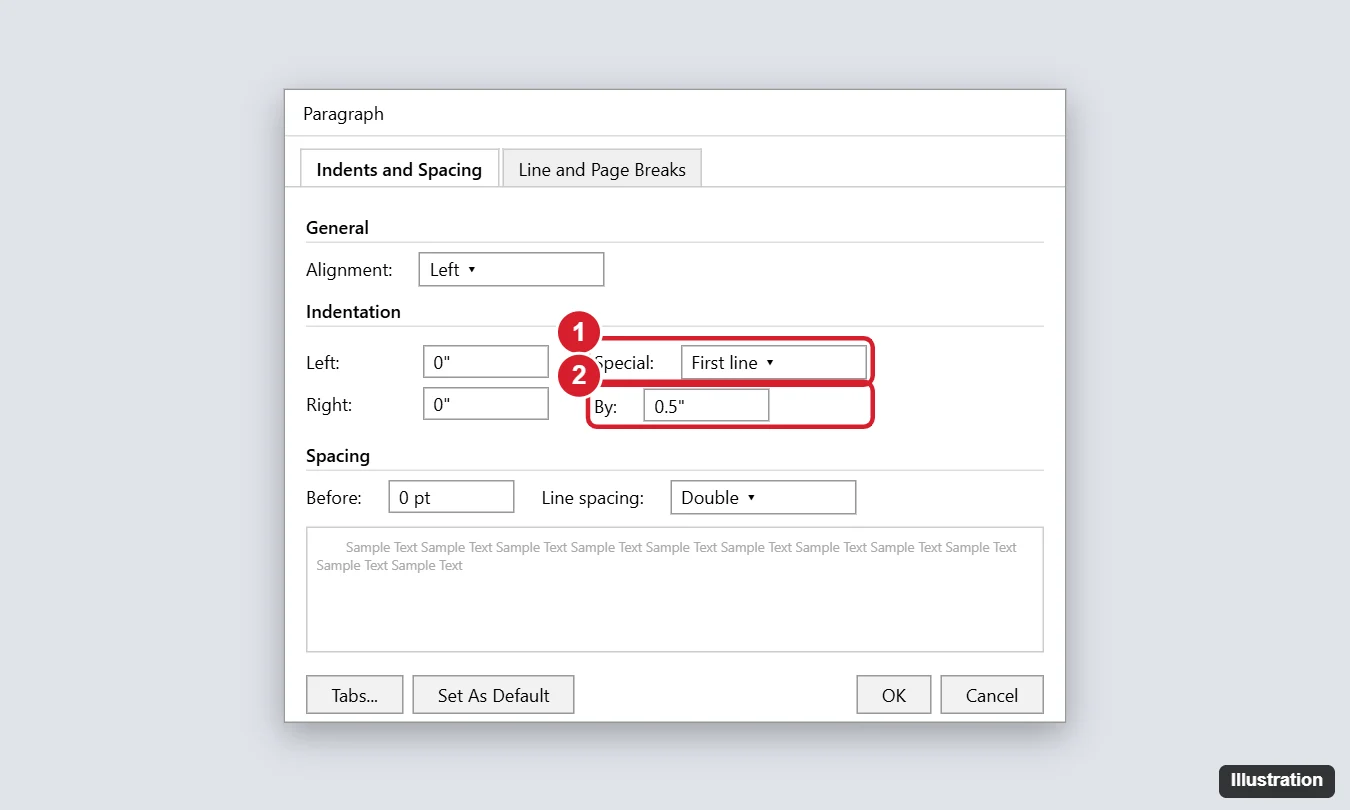
Method 3: Change the indent distance
- Right-click any bullet in the list.
- Choose Adjust List Indents.
- Set Bullet position (how far the bullet is from the margin) and Text indent (where the text starts).
- Set Follow number with to Tab character, Space, or Nothing, and click OK.
You can also drag the markers on the ruler (turn it on with View > Ruler). The top triangle moves the bullet, and the bottom triangle moves the text.
Method 4: Pick a level from the menu
- Click in the bullet.
- On the Home tab, click the arrow next to Bullets.
- Point to Change List Level and choose a level.
Change the symbol for indented bullets
- Click in an indented bullet.
- Click the arrow next to Bullets and pick a symbol, or choose Define New Bullet for more options.
This changes only that level. For full control over every level, use Multilevel List > Define New Multilevel List.
If Tab doesn’t indent the bullet
- Click at the very start of the text, not in the middle. Tab in the middle of text inserts a tab space instead.
- Check AutoCorrect: go to File > Options > Proofing > AutoCorrect Options > AutoFormat As You Type and make sure Set left- and first-indent with tabs and backspaces is checked.
- It’s not a real list. If the bullet was typed as a symbol, select the lines and click Bullets to make it a proper list.
Related: Insert bullet points in Word.
Related: How to move a bullet point back in Word.
Related: Create a multilevel list in Word.
Frequently asked questions
How do I indent bullets in Word for Mac?
The same way: press Tab to indent and Shift + Tab to outdent, or use the indent buttons on the Home tab.
How do I indent bullets in Google Docs?
Press Tab and Shift + Tab, or click Increase indent in the toolbar.
How do I change the bullet color?
See how to change bullet color in Word.

Kermit Matthews is a freelance writer based in Philadelphia, Pennsylvania with more than a decade of experience writing technology guides. He has a Bachelor’s and Master’s degree in Computer Science and has spent much of his professional career in IT management.
He specializes in writing content about iPhones, Android devices, Microsoft Office, and many other popular applications and devices.