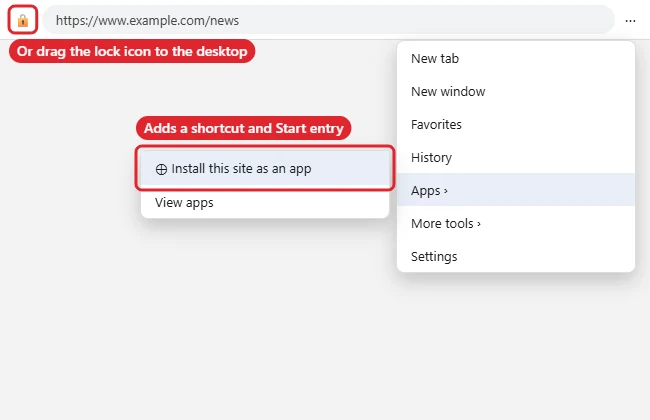
The simplest way to create a desktop shortcut to a website in Microsoft Edge on Windows 11 is to shrink the Edge window so you can see the desktop, then drag the lock icon (left of the address) onto the desktop. For an app-style shortcut, open the menu (⋯) and choose Apps > Install this site as an app, then tick Create Desktop shortcut when asked. You can also right-click the desktop and choose New > Shortcut and paste the web address.
Quick Answer
Drag the lock icon from Edge’s address bar to the desktop. Or ⋯ > Apps > Install this site as an app > allow a desktop shortcut.
Method 1: Drag the Lock Icon
- Open the website in Edge.
- Click Restore Down so part of the desktop is visible.
- Drag the lock icon next to the web address onto the desktop and let go.
- Double-click the new shortcut; it opens in your default browser.
Method 2: Install the Site as an App
- Open the site in Edge and click Settings and more (⋯).
- Choose Apps > Install this site as an app and click Install.
- When Edge offers options, tick Create Desktop shortcut (and Pin to taskbar or Start if you like), then click Allow.
Method 3: New Shortcut on the Desktop
- Copy the web address from Edge’s address bar.
- Right-click the desktop and choose New > Shortcut.
- Paste the address, click Next, type a name and click Finish.
Methods Compared
| Method | Opens in | Best for |
|---|---|---|
| Drag lock icon | Default browser tab | Quick links |
| Install as an app | Its own Edge window | Web apps like mail or chat |
| New > Shortcut | Default browser tab | When dragging isn’t practical |
| Pin to taskbar | Edge (from the taskbar) | Sites you open every day |
On Windows 7, see the taskbar Address toolbar.
Troubleshooting
- Install this site as an app is missing: Some pages don’t support it. Use Method 1 or 3.
- Shortcut opens another browser: It uses your default browser. Change it in Settings > Apps > Default apps, or use the installed-app method.
- Want the icon on the taskbar instead? See pinning a site to the taskbar.
- Other shortcuts: See adding shortcuts to the Windows 11 desktop or desktop shortcuts in Windows 10.
Related: Pin a website to the taskbar in Windows 11.
Related: Make shortcuts on Windows 11.
Frequently Asked Questions
Can I change the shortcut icon?
For a .url shortcut, right-click it > Properties > Change Icon. Installed apps use the site’s own icon.
How do I remove an installed site?
Go to edge://apps, click the three dots on the app and choose Uninstall.
Does this work in Windows 10?
Yes. The same Edge steps work.
Summary
- Drag the lock icon to the desktop for a quick link.
- Or install the site as an app with a desktop shortcut.
- Or use New > Shortcut and paste the address.
- Pin daily sites to the taskbar.

Kermit Matthews is a freelance writer based in Philadelphia, Pennsylvania with more than a decade of experience writing technology guides. He has a Bachelor’s and Master’s degree in Computer Science and has spent much of his professional career in IT management.
He specializes in writing content about iPhones, Android devices, Microsoft Office, and many other popular applications and devices.