Moving Windows to a new SSD is one of the best upgrades for an older PC: startup, app launches, and file transfers become dramatically faster. You can either clone your current drive, which copies Windows, apps, and files exactly as they are, or do a clean install on the new SSD and move your files over. This guide walks through both approaches for Windows 10 and Windows 11, including how to connect the SSD, set it as the boot drive, and fix common problems.
Quick Answer
Back up your files, connect the new SSD (inside the PC or with a USB adapter), and use cloning software such as your SSD maker's migration tool or a free option like Clonezilla to copy your current Windows drive to the SSD. Then install the SSD as the main drive (or set it first in the BIOS/UEFI boot order), start the PC, and extend the partition if the SSD is larger.
Clone vs. Clean Install
| Clone | Clean install | |
|---|---|---|
| What you get | An exact copy: Windows, apps, settings, files | Fresh Windows; reinstall apps and copy files |
| Time | Usually 30 minutes to a few hours | Longer overall, because of reinstalling apps |
| Best for | A healthy PC you want to keep as is | A slow or cluttered PC, or a problematic Windows install |
| Requirement | SSD capacity must hold your used space | Windows installation USB drive |
What You Need
- The new SSD (SATA 2.5-inch or M.2 NVMe, matching your PC).
- A way to connect it: a free SATA or M.2 slot, or a USB-to-SATA/NVMe adapter or enclosure (common for laptops with one slot).
- Cloning software, or a Windows installation USB for a clean install.
- A full backup of important files.
Step 1: Prepare
- Back up your files to an external drive or cloud storage.
- Check used space: open File Explorer > This PC and make sure the data on your C: drive fits on the new SSD. Delete or move large files if needed.
- Save your BitLocker recovery key if drive encryption is on (Settings shows it under Device encryption or BitLocker), or suspend BitLocker before cloning.
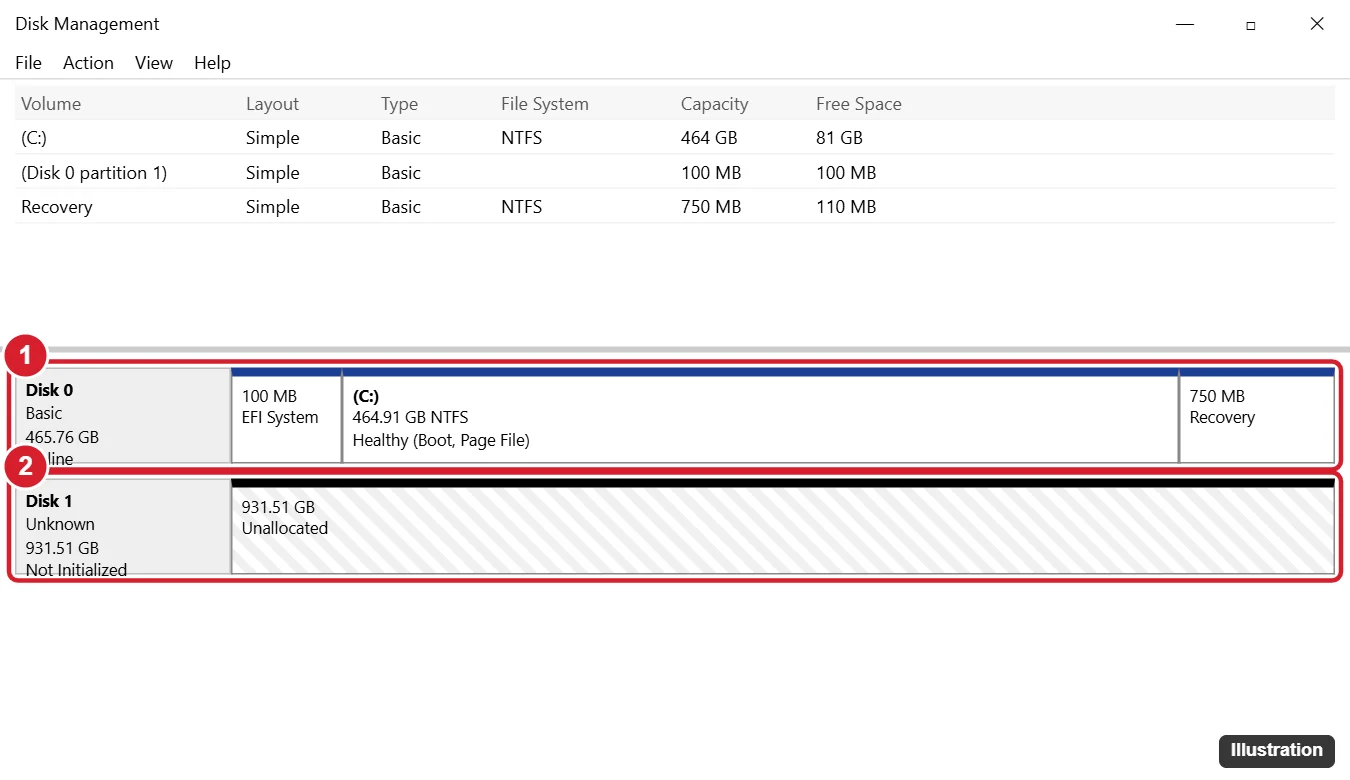
- Connect the SSD and open Disk Management (right-click Start) to confirm Windows detects it. Most cloning tools do not need you to initialize it first.
Step 2: Clone the Drive
- Install your SSD manufacturer's migration tool if one is offered (many SSD brands provide free cloning software), or use another reputable cloning tool. Clonezilla is a free, open-source option that runs from a USB drive.
- Select your current Windows disk as the source.
- Select the new SSD as the destination. Double-check this, because the destination is erased.
- Choose to copy all partitions (EFI, Windows, and Recovery). Many tools can resize them to fit.
- Start cloning and wait for it to finish.
Step 3: Boot From the SSD
- Desktop with two drives: enter the BIOS/UEFI (often Del or F2 at startup) and move the SSD to the top of the boot order. After confirming it works, you can format the old drive for storage.
- Laptop with one slot: shut down, swap the old drive for the new SSD, and start the PC.
Once booted, open Disk Management and check that C: is on the new SSD.
Step 4: Use the Full Capacity
If the SSD is larger and shows unallocated space after the C: drive, right-click C: in Disk Management and choose Extend Volume. If a recovery partition sits in the way, the extension may be blocked; your cloning tool may be able to resize partitions, or leave the extra space as a separate data drive.
Alternative: Clean Install on the New SSD
- Create a Windows installation USB with Microsoft's Media Creation Tool (Windows 10) or the Windows 11 Installation Assistant/media tool.
- Install the SSD, boot from the USB, and choose Custom: Install Windows only, selecting the SSD.
- Sign in with your Microsoft account; digital licenses usually activate automatically.
- Reinstall apps and copy files back from your backup.
Thinking about striping drives? See RAID 0 on Windows 11.
Troubleshooting
The SSD does not appear
Check connections and power cables, and for M.2 drives confirm the slot supports that SSD type. New SSDs do not show in File Explorer until they have partitions.
The PC will not boot from the clone
Make sure the EFI partition was cloned, set the SSD first in the boot order, and match the boot mode (UEFI). Running Startup Repair from a Windows USB can fix boot files.
Windows asks for a BitLocker recovery key
Enter the key you saved in Step 1.
Frequently Asked Questions
Can I clone a larger drive to a smaller SSD?
Yes, if the used space fits. Most tools shrink partitions automatically.
Do I need to reactivate Windows?
Usually not when cloning on the same PC. Digital licenses tied to your hardware remain valid.
Should I enable anything after moving to an SSD?
Windows detects SSDs and schedules optimization (TRIM) automatically. Check Defragment and Optimize Drives to confirm it shows Solid state drive.
Summary
- Back up, check space, and save your BitLocker key.
- Connect the SSD and clone your Windows drive with trusted software.
- Set the SSD as the boot drive or swap it in.
- Extend the C: partition to use the full capacity, or do a clean install instead.

Kermit Matthews is a freelance writer based in Philadelphia, Pennsylvania with more than a decade of experience writing technology guides. He has a Bachelor’s and Master’s degree in Computer Science and has spent much of his professional career in IT management.
He specializes in writing content about iPhones, Android devices, Microsoft Office, and many other popular applications and devices.