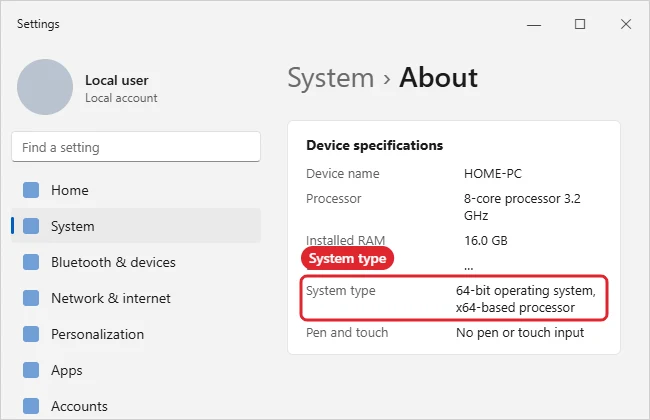
To tell whether you have 64-bit Windows, open Settings > System > About and look at System type. It says either 64-bit operating system or 32-bit operating system, followed by your processor type. The quickest shortcut is Windows + Pause/Break, which opens the same page on most keyboards. If you’re on Windows 11, you already have a 64-bit version, because Windows 11 doesn’t come in 32-bit.
Quick Answer
Settings > System > About > System type.
Check in Settings
- Right-click Start and choose System. (Or open Settings > System > About.)
- Under Device specifications, find System type.
- Read the two parts: the Windows version (32-bit or 64-bit) and the processor (x64-based, x86-based, or ARM-based).
What the Results Mean
| System type says | Meaning |
|---|---|
| 64-bit operating system, x64-based processor | Standard 64-bit PC; install 64-bit (x64) apps |
| 32-bit operating system, x64-based processor | The processor supports 64-bit, but Windows is 32-bit; a clean install is needed to switch |
| 32-bit operating system, x86-based processor | Older hardware limited to 32-bit |
| 64-bit operating system, ARM-based processor | An ARM PC; choose ARM64 apps when offered |
Other Ways to Check
- System Information: Press Windows + R, type msinfo32, and look for System Type (x64-based PC means 64-bit Windows).
- Command Prompt: Run echo %PROCESSOR_ARCHITECTURE%. AMD64 means 64-bit, x86 means 32-bit, ARM64 means ARM.
- File Explorer: A 64-bit PC has both Program Files and Program Files (x86) on the C: drive.
Why It Matters
- 64-bit Windows can use more than 4 GB of RAM; 32-bit can’t.
- Many apps and drivers now come only in 64-bit versions.
- Windows 11 requires a 64-bit processor.
Old 16-bit programs won’t run on 64-bit Windows; see how to run QBasic on Windows with QB64 or DOSBox.
Troubleshooting
- No Pause key on your laptop: Use Settings or msinfo32 instead.
- Installed RAM shows less than expected on 32-bit: That’s the 32-bit limit, not faulty RAM.
- Want to know your exact Windows version too? Run winver from the Run box.
- Checking other hardware? See how to see your GPU.
Frequently Asked Questions
Can I upgrade 32-bit Windows to 64-bit without reinstalling?
No. You need a clean install of the 64-bit version, which erases the drive, so back up first.
Is Windows 11 ever 32-bit?
No. Windows 11 is 64-bit only.
Can 64-bit Windows run 32-bit apps?
Yes, most 32-bit apps run fine on 64-bit Windows.
Summary
- Settings > System > About > System type.
- Or press Windows + Pause/Break.
- msinfo32 and PROCESSOR_ARCHITECTURE also work.
- Windows 11 is always 64-bit.

Kermit Matthews is a freelance writer based in Philadelphia, Pennsylvania with more than a decade of experience writing technology guides. He has a Bachelor’s and Master’s degree in Computer Science and has spent much of his professional career in IT management.
He specializes in writing content about iPhones, Android devices, Microsoft Office, and many other popular applications and devices.