To show your FPS in Minecraft: Java Edition on Windows 10, press F3 in game (or Fn + F3 on many laptops). The debug screen opens, and your frames per second appear near the top-left corner, in a line that starts with a number followed by fps. Press F3 again to hide it. Minecraft for Windows (Bedrock Edition) doesn’t have a built-in FPS counter, so use the Xbox Game Bar (Windows + G) or your graphics card’s overlay instead.
Show FPS in Minecraft: Java Edition
- Load into a world.
- Press F3. On laptops where the F-keys control other functions, press Fn + F3.
- Look at the top-left corner. The second line starts with your FPS, like 144 fps.
- Press F3 again to close the debug screen.
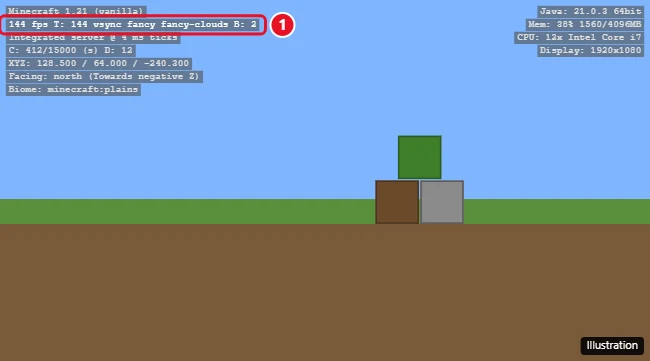
That line also shows your FPS limit (T:), whether VSync is on, and your graphics settings. The debug screen covers part of your view, so most players turn it on only when checking performance.
See an FPS graph
Recent Java Edition versions include performance charts on the debug screen. Press F3 and then press F3 + 2 to toggle the frame time and tick charts. In older versions, Alt + F3 showed a frame time graph.
Keep a small FPS counter on screen
Vanilla Java Edition doesn’t have a small, always-on FPS counter. Popular performance mods and some client launchers add one, but only download mods from trusted sites like Modrinth or CurseForge. The overlays below also work without mods.
Show FPS in Minecraft for Windows (Bedrock Edition)
Xbox Game Bar (built into Windows)
- Press Windows + G while playing.
- Open the Performance widget. If you don’t see it, click the Widget menu and choose Performance.
- Click the FPS tab. If asked, click Request access and restart your PC to allow FPS tracking.
- Click the pin icon to keep the widget on screen after you close the Game Bar.
Graphics card overlays
- NVIDIA: Press Alt + R in the NVIDIA app to show the performance overlay, or turn on the Statistics overlay in its settings.
- AMD: Press Ctrl + Shift + O to toggle the AMD Software metrics overlay.
- Intel: Use the Intel Graphics Software performance overlay on supported GPUs.
How to get higher FPS in Minecraft
- Lower the render distance to 8 to 12 chunks. This has the biggest impact.
- Set Graphics to Fast and turn off Smooth Lighting or Clouds.
- Raise the frame rate limit or set Max Framerate to Unlimited, and turn off VSync if you want more than your monitor’s refresh rate.
- Use your graphics card, not integrated graphics: Go to Settings > System > Display > Graphics settings, add javaw.exe or Minecraft, and set it to High performance.
- Plug in your laptop and choose the Best performance power mode.
- Update your graphics driver.
Frequently asked questions
Why doesn’t F3 do anything?
Your laptop’s F3 key may be set to a media function. Press Fn + F3, or turn on Fn Lock. Also make sure you’re in Java Edition, since Bedrock doesn’t use F3.
Is showing FPS allowed on servers?
Yes. The F3 screen and overlays are allowed everywhere. Some servers turn on Reduced Debug Info, which hides coordinates but still shows FPS.
What’s a good FPS for Minecraft?
60 FPS is smooth for most players. If you have a high refresh rate monitor, aim to match it, like 120 or 144 FPS.
How do I make Minecraft full screen?
Press F11. See how to make Minecraft full screen on Windows 10 for more.

Kermit Matthews is a freelance writer based in Philadelphia, Pennsylvania with more than a decade of experience writing technology guides. He has a Bachelor’s and Master’s degree in Computer Science and has spent much of his professional career in IT management.
He specializes in writing content about iPhones, Android devices, Microsoft Office, and many other popular applications and devices.