For years, Windows 11 locked the taskbar to the bottom of the screen, which frustrated anyone used to a top or side taskbar in Windows 10. That changed in 2026: Microsoft added a Taskbar position setting that lets you move the taskbar to the top, left, right, or bottom. This guide shows how to use it, what to do if you don’t see the option yet, and alternatives for older versions.
Quick Answer
Open Settings > Personalization > Taskbar, expand Taskbar behaviors, and set Taskbar position to Top. The taskbar moves immediately. The setting arrived with the August 27, 2026 preview update (KB5120998) for Windows 11 24H2 and 25H2 and is rolling out gradually, so install the latest updates if you don’t see it.
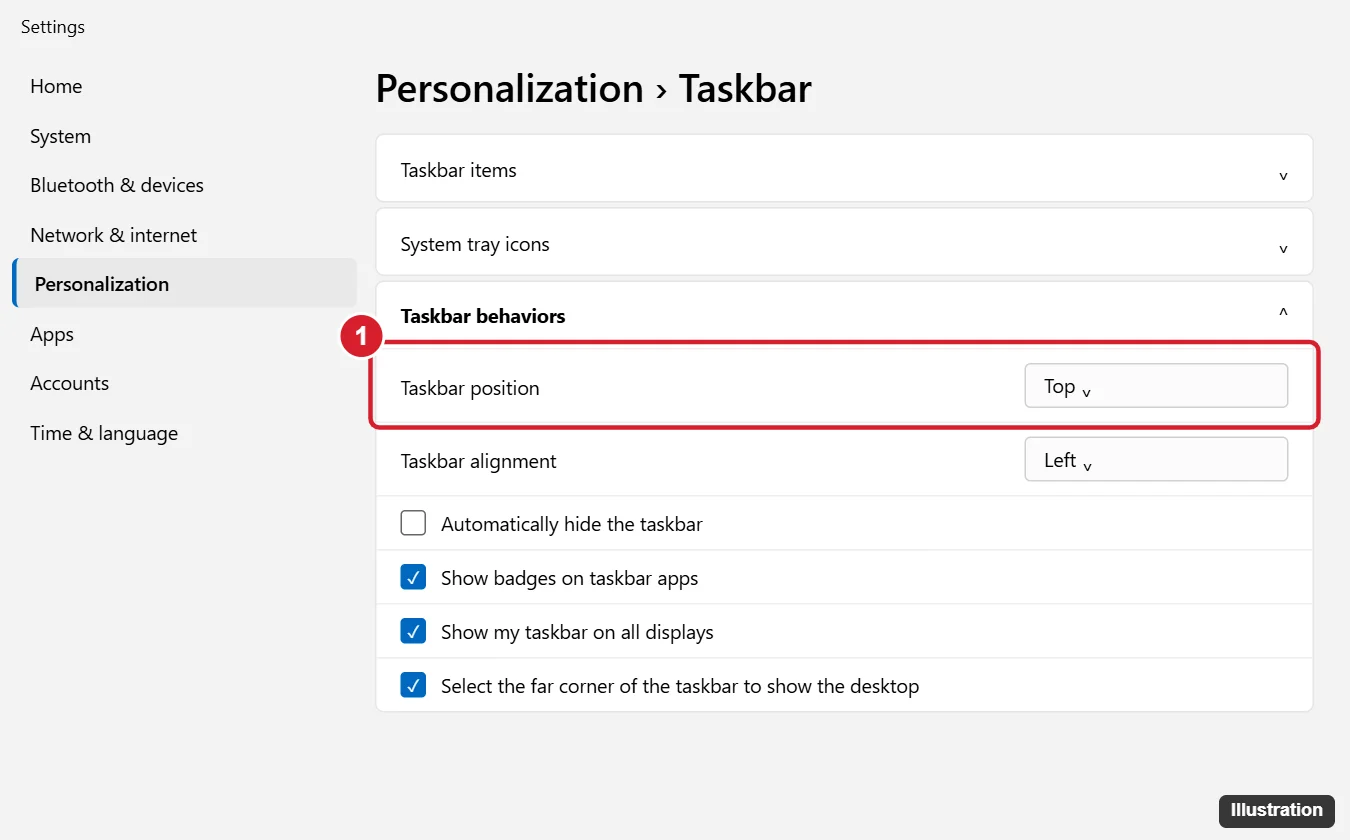
Move the Taskbar to the Top
- Right-click an empty area of the taskbar and choose Taskbar settings (or go to Settings > Personalization > Taskbar).
- Click Taskbar behaviors to expand it.
- Open the Taskbar position dropdown and choose Top (or Left, Right, or Bottom).
Microsoft notes that the Search box and smaller taskbar options currently work only with top and bottom positions.
Don’t See Taskbar Position?
- Check your Windows version: go to Settings > System > About. The feature requires Windows 11 24H2 or 25H2 with recent updates.
- Install updates: go to Settings > Windows Update, click Check for updates, and install everything, including optional preview updates if you want features sooner. Turning on Get the latest updates as soon as they’re available can help.
- Wait for the rollout: Microsoft enables new features in stages, so the setting may appear days or weeks after your update is installed.
- Work or school PCs: your organization may control update timing or taskbar settings.
Alternatives on Older Windows 11 Versions
- Align taskbar icons left: in Taskbar behaviors, set Taskbar alignment to Left for a Windows 10-style layout at the bottom.
- Auto-hide: check Automatically hide the taskbar to free up screen space.
- Third-party tools: apps like StartAllBack or ExplorerPatcher could move the taskbar on earlier builds. They modify system components, so download them only from official sites and consider the built-in setting first.
- Registry tweak: the old StuckRects3 registry method stopped working reliably after Windows 11 22H2, so it’s no longer recommended.
Tips After Moving the Taskbar
- Some apps’ pop-ups or notifications may briefly appear in unexpected places until they adapt; restart the app if menus look misplaced.
- With multiple monitors, Show my taskbar on all displays applies the same position to each display.
- If Start menu size or layout looks off, try toggling taskbar alignment between Center and Left.
Frequently Asked Questions
Can I drag the taskbar to the top like in Windows 10?
Use the Taskbar position setting. Dragging the taskbar isn’t the supported method in Windows 11.
How do I move it back to the bottom?
Set Taskbar position to Bottom in the same menu.
Does this work on Windows 10?
Windows 10 has always allowed it: right-click the taskbar, choose Taskbar settings, and set Taskbar location on screen.
Summary
- Update Windows 11 to the latest 24H2 or 25H2 build.
- Go to Settings > Personalization > Taskbar > Taskbar behaviors.
- Set Taskbar position to Top.
- If the option is missing, wait for the gradual rollout or use left alignment meanwhile.

Kermit Matthews is a freelance writer based in Philadelphia, Pennsylvania with more than a decade of experience writing technology guides. He has a Bachelor’s and Master’s degree in Computer Science and has spent much of his professional career in IT management.
He specializes in writing content about iPhones, Android devices, Microsoft Office, and many other popular applications and devices.