Virtual desktops let you keep separate workspaces on one Windows PC, for example one for work apps and one for personal browsing. Windows 11 and Windows 10 both support them through Task View, with shortcuts to create and switch desktops.
Quick Answer
Press Windows+Ctrl+D to create a new desktop instantly, or press Windows+Tab and click New desktop. Switch between desktops with Windows+Ctrl+Left or Right Arrow.
How to Make a New Desktop in Windows
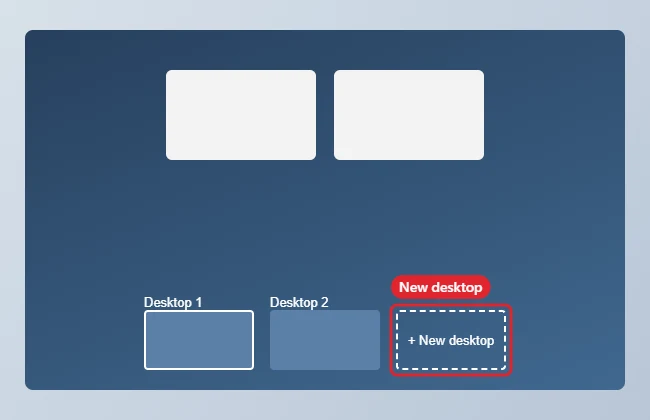
- Press Windows+Tab or click Task View on the taskbar.
- Click New desktop at the bottom (or top) of the screen.
- Click the new desktop to switch to it, then open the apps you want there.
- Press Windows+Ctrl+Right or Left Arrow to move between desktops.
- To close a desktop, press Windows+Ctrl+F4; its windows move to the next desktop.
Virtual Desktop Shortcuts
| Action | Shortcut |
|---|---|
| New desktop | Windows+Ctrl+D |
| Switch desktops | Windows+Ctrl+Left or Right |
| Close desktop | Windows+Ctrl+F4 |
| See all desktops | Windows+Tab |
| Rename desktop (Windows 11) | Right-click it in Task View |
Move Apps Between Desktops
Open Task View with Windows+Tab, then drag a window thumbnail onto another desktop at the bottom of the screen. You can also right-click the thumbnail, choose Move to and pick a desktop. If you want an app such as a music player or chat window to follow you everywhere, right-click it and choose Show this window on all desktops instead.
Customise Each Desktop in Windows 11
Windows 11 lets you give every desktop its own identity. In Task View, right-click a desktop and choose Rename to label it, for example Work, School or Gaming. Right-click it again and choose Choose background to give it a different wallpaper, which makes it easy to tell at a glance which desktop you are on. Windows 10 desktops can be renamed in recent versions, but they all share the same wallpaper.
When Extra Desktops Help
- Separating work apps from personal browsing during the day.
- Keeping research and writing on different desktops for a big project.
- Hiding everything except a presentation when you share your screen.
- Grouping games or streaming apps away from your inbox.
Extra desktops do not use much memory on their own; the apps you open on them do. For more detail on moving around, see switching between desktops in Windows 11 or using multiple desktops on Windows 10.
Troubleshooting
- Apps appear on every desktop: right-click the window in Task View and check Show this window on all desktops only if you want that.
- Alt+Tab shows windows from all desktops: change this in Settings, System, Multitasking.
- To see every open window, read how to see all open windows.
- If windows end up off-screen, see how to bring all windows to one screen.
Related: Use multiple desktops on Windows 10.
Frequently Asked Questions
Do virtual desktops use more memory?
Only the apps you open use memory; the desktops themselves are lightweight.
Can I set different wallpapers?
Yes, in Windows 11. Right-click a desktop in Task View and choose Choose background.
Do desktops stay after restart?
Yes, though apps may need reopening.
Summary
- Press Windows+Ctrl+D.
- Or use Task View, New desktop.
- Switch with Windows+Ctrl+Arrow.
- Close with Windows+Ctrl+F4.

Kermit Matthews is a freelance writer based in Philadelphia, Pennsylvania with more than a decade of experience writing technology guides. He has a Bachelor’s and Master’s degree in Computer Science and has spent much of his professional career in IT management.
He specializes in writing content about iPhones, Android devices, Microsoft Office, and many other popular applications and devices.