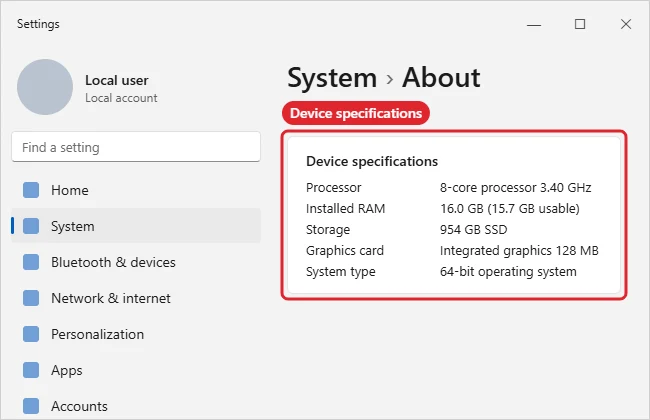
Finding your computer specs in Windows 11 is a straightforward process. You simply need to access the “Settings” menu and navigate to the “System” section where you’ll find detailed information about your computer’s hardware. Alternatively, you can use shortcuts or commands for quicker access. Let’s break down the steps to ensure you can view all the specs you need.
Finding Computer Specs in Windows 11
In this section, we’ll walk through the steps to get detailed information about your Windows 11 computer’s specifications. By the end, you’ll know exactly where to find essential details like processor type, RAM, and more.
Step 1: Open Settings
Click the Start button and select “Settings.”
Opening the Settings menu is your gateway to all the information you’ll need about your computer. This is where Windows 11 keeps most of its configuration options, including the details about your system hardware.
Step 2: Navigate to System
In the Settings menu, click on “System.”
The System section provides an overview of your computer’s hardware and software details. This is the place where you’ll find most of the specs you’re interested in.
Step 3: Click on About
Scroll down and click on “About” at the bottom of the System menu.
The About page is the summary sheet of your computer’s internal workings. Here, you can view details like device name, processor, installed RAM, and more.
Step 4: Check Device Specifications
Look under “Device specifications” for detailed hardware info.
This section will show you crucial details like your processor model, installed RAM, and system type (32-bit or 64-bit). It’s a quick snapshot of what makes your computer tick.
Step 5: Use System Information for Advanced Details
For more in-depth specs, type “System Information” in the Start menu search bar and open it.
The System Information tool provides an exhaustive list of specs, including information about your components and configurations. It’s perfect for anyone who needs a more detailed look.
Once you’ve completed these steps, you’ll have a clear understanding of your computer’s specifications. Whether you’re checking compatibility for new software or just curious about your hardware, these details are now at your fingertips.
Tips for Finding Computer Specs in Windows 11
- Always keep your Windows updated to ensure accurate information.
- Use keyboard shortcuts to quickly navigate (e.g., Windows + I to open Settings).
- Third-party tools can provide even more detailed specs if needed.
- Familiarize yourself with technical terms to understand specs better.
- Take notes of specs if needed for troubleshooting or upgrades.
Frequently Asked Questions
How do I check my graphics card specs in Windows 11?
Use the “System Information” tool to find detailed graphics card information under “Components” > “Display.”
Can I find my specs using a command prompt?
Yes, typing “dxdiag” in the command prompt will provide detailed specs, especially useful for graphics and sound.
Why do I need to know my computer specs?
Knowing your specs helps ensure compatibility with software, troubleshoot issues, and plan upgrades.
Is there a shortcut to open System Information?
Yes, press Windows + R, type “msinfo32,” and hit Enter to open System Information directly.
How often should I check my computer specs?
Check them whenever you’re planning upgrades or troubleshooting issues to ensure compatibility and performance.
Summary
- Open Settings.
- Navigate to System.
- Click on About.
- Check Device Specifications.
- Use System Information for more details.
Conclusion
Understanding how to find your computer specs in Windows 11 is essential for anyone who uses a PC. Whether you’re a casual user or a tech enthusiast, knowing what’s under the hood can save you time and prevent headaches when dealing with software or hardware issues. Regularly checking your specs ensures your system is up to date and performing optimally.
After learning these steps, you’ll be well-equipped to tackle future tech challenges. If you want to dive deeper into the world of PCs, consider exploring online resources or forums for further reading. And remember, keeping tabs on your computer’s specs is not just a one-time task but a part of good digital hygiene. So, why not take a few minutes now to check your Windows 11 specs and ensure everything is running smoothly? Your future self will thank you!

Kermit Matthews is a freelance writer based in Philadelphia, Pennsylvania with more than a decade of experience writing technology guides. He has a Bachelor’s and Master’s degree in Computer Science and has spent much of his professional career in IT management.
He specializes in writing content about iPhones, Android devices, Microsoft Office, and many other popular applications and devices.