To stop Microsoft Defender Antivirus from scanning a file or folder, open Windows Security, go to Virus and threat protection, Manage settings, Exclusions, and choose Add an exclusion. Only exclude items you trust: anything excluded is no longer checked for malware.
You need administrator rights. The steps are the same in Windows 10 and Windows 11.
Add an Exclusion in Windows Security
- Click Start, type Windows Security and open it.
- Select Virus and threat protection.
- Under Virus and threat protection settings, click Manage settings.
- Scroll to Exclusions and click Add or remove exclusions, then Yes in the prompt.
- Click Add an exclusion and choose File, Folder, File type or Process.
- Pick the item (or type the extension or process name) and confirm.
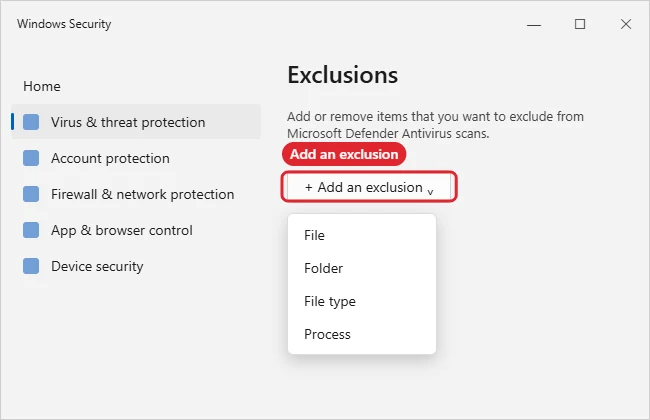
Which Exclusion Type to Use
| Type | What it skips | Note |
|---|---|---|
| File | One specific file | Safest option |
| Folder | The folder and everything in its subfolders | Never exclude Downloads, Desktop or a whole drive |
| File type | Every file with an extension, such as .log | Avoid common types like .exe, .zip or .pdf |
| Process | Files opened by a program | Applies only to real-time protection, not scheduled or manual scans |
Remove an Exclusion
- Return to Exclusions (steps 1 to 4 above).
- Click the exclusion to expand it.
- Click Remove.
If you’re switching from Norton back to Microsoft Defender, see how to uninstall Norton on Windows 11 first.
Use Wildcards and Environment Variables
Microsoft’s support page explains that Windows Security accepts an asterisk (*) as a wildcard for any number of characters, which helps when a single exclusion needs to cover several related items:
- File type: an asterisk inside the extension matches any characters, so an entry such as
*stwould cover .test, .past, and any other extension ending in “st.” Be precise here, because a loose pattern can exclude far more than you intended. - Process:
C:\MyProcess\*excludes files opened by every process stored in that folder and its subfolders, whiletest.*matches any process named test, whatever its extension. - Environment variables: process exclusions can use variables such as
%ALLUSERSPROFILE%, which points to C:\ProgramData on a standard installation.
Microsoft recommends using the full path and file name when you exclude a process. That makes it harder for malware to borrow the name of a trusted program and slip past real-time scanning.
What an Exclusion Does and Doesn’t Cover
An exclusion is narrower than many people expect. According to Microsoft, exclusions apply to real-time scanning by Microsoft Defender Antivirus. Scheduled scans, and any third-party anti-malware tool you run, may still scan the excluded files. A process exclusion behaves a little differently: files opened by that process are skipped by real-time scanning but are still checked during on-demand or scheduled scans unless you have also excluded those files or folders.
That design is deliberate. It lets a trusted tool such as a backup program, a game launcher, or a developer build tool run without constant interruptions while Defender still checks the files on its regular schedule.
When an Exclusion Makes Sense
| Situation | Better approach |
|---|---|
| A trusted app is slowed down by real-time scanning | Exclude that app’s process or working folder, not the whole drive |
| A large project or build folder triggers constant scans | Exclude that one folder; on Windows 11, a Dev Drive with performance mode is another option |
| A file you downloaded was flagged | Don’t exclude it; scan it again and confirm the source first |
| You want to try an unknown program | Use Windows Sandbox or a virtual machine instead |
| You need Defender completely off for a short task | Prefer a narrow exclusion; it’s safer than switching protection off |
Microsoft notes that excluding a single file or folder is safer than turning off antivirus protection entirely. If you do need the broader options, our guides on using Windows Defender and turning Windows Defender back on in Windows 11 cover the full app.
Review Your Exclusions Regularly
Exclusions stay in place until you remove them, so it’s easy to forget an old one. Every few months, open Windows Security > Virus & threat protection > Manage settings > Add or remove exclusions and remove anything you no longer use, such as folders for uninstalled programs or old project files. Fewer exclusions means fewer places malware could hide.
Frequently Asked Questions
Do I need administrator rights to add an exclusion?
Yes. Windows shows a User Account Control prompt when you open the exclusions list, and you need to approve it with an administrator account.
Does excluding a folder include its subfolders?
Yes. A folder exclusion covers the folder and all of the files within it, including those in subfolders.
Can I exclude a website?
No. Exclusions cover files, folders, file types, and processes. Website warnings come from Microsoft Defender SmartScreen, which is controlled separately under App & browser control.
Are the steps the same on Windows 10?
Yes. The Windows Security app uses the same Virus & threat protection settings on Windows 10 and Windows 11. Dev Drive protection is the exception; it isn’t available on Windows 10.
Troubleshooting
- Exclusions are greyed out: your organization manages Defender, or another antivirus is active. Use that product’s settings.
- Defender still flags the file: check you excluded the exact path, and restart the app that uses it.
- A download was blocked as a threat: do not exclude it unless you are sure it is safe. Scan it first, see how to check for malware.
Microsoft’s instructions and warning are in Add an exclusion to Windows Security. Testing an unknown program? Try it in Windows Sandbox instead of excluding it.

Kermit Matthews is a freelance writer based in Philadelphia, Pennsylvania with more than a decade of experience writing technology guides. He has a Bachelor’s and Master’s degree in Computer Science and has spent much of his professional career in IT management.
He specializes in writing content about iPhones, Android devices, Microsoft Office, and many other popular applications and devices.