To stop Google Photos from syncing, open the Google Photos app, tap your profile picture, choose Photos settings > Backup, and turn off Backup. New photos and videos on your phone stop uploading to your Google Account. Photos that were already backed up stay in Google Photos, and nothing is deleted from your phone.
You can also stop syncing just certain folders, pause backup temporarily, or stop your computer from uploading. Here’s how.
How to turn off Google Photos backup on your phone
- Open the Google Photos app.
- Tap your profile picture in the top-right corner.
- Tap Photos settings, then Backup.
- Turn off Backup.
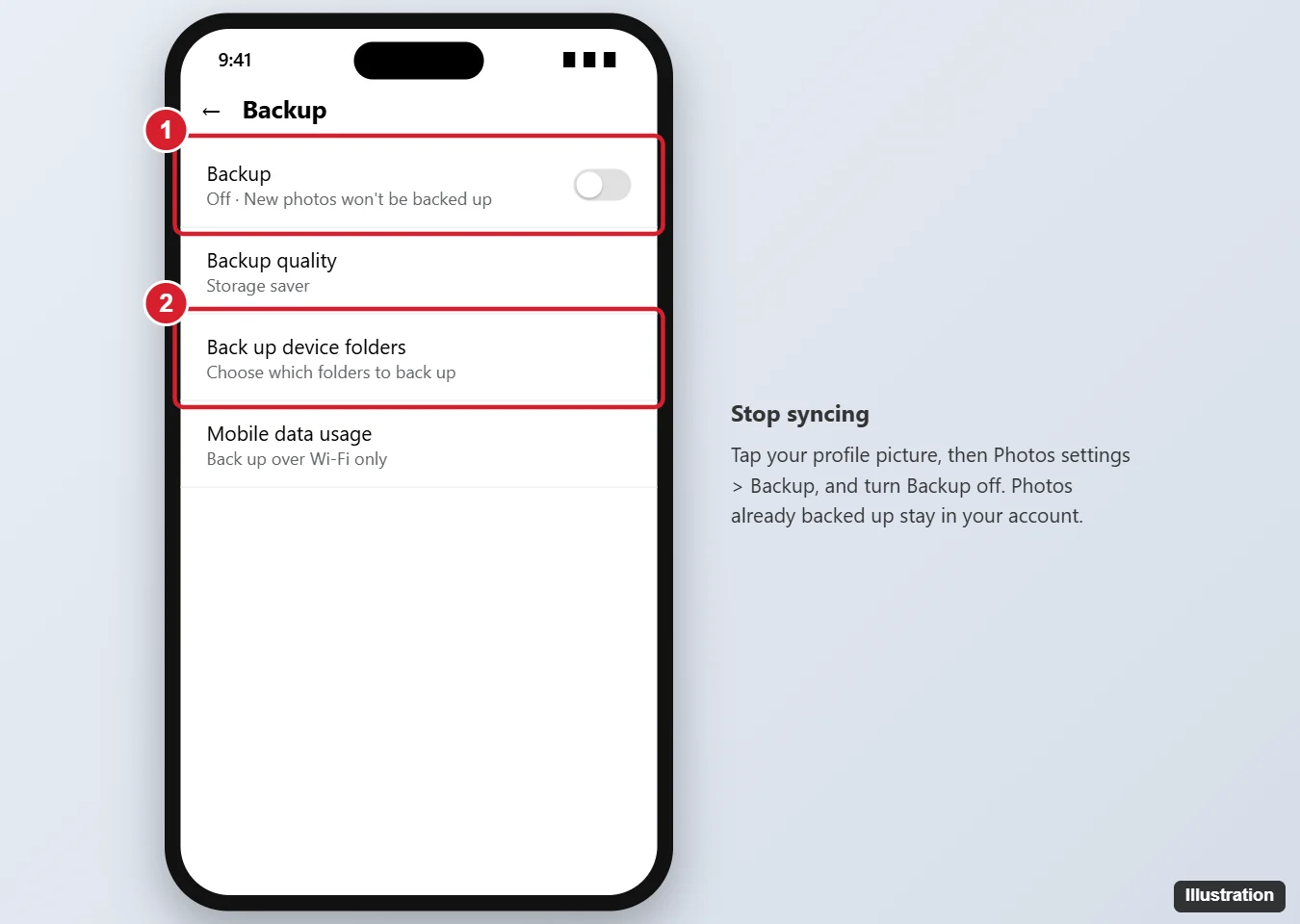
On Android, you can also swipe down from your profile picture menu and tap Turn off backup. On iPhone, you can revoke access entirely in Settings > Apps > Google Photos > Photos > None.
Stop syncing specific folders (Android)
Keep backup on but skip folders like screenshots or WhatsApp images:
- Go to Photos settings > Backup > Back up device folders.
- Turn off the folders you don’t want to sync.
Pause backup temporarily
Tap your profile picture, and where backup status appears, tap Pause (or Pause for 1 day). This is handy when you’re low on data or battery.
Use less mobile data instead
In Backup > Mobile data usage, choose to back up only on Wi-Fi, or set a daily limit.
Stop syncing from a computer
If you use Google Drive for desktop to upload photos, open it from the system tray (Windows) or menu bar (Mac), click the gear > Preferences, and turn off Back up to Google Photos for your folders, or remove the folders from backup.
What happens when you stop syncing?
| Item | After turning off backup |
|---|---|
| Photos already backed up | Stay in Google Photos |
| Photos on your phone | Stay on your phone |
| New photos | Saved only on your phone |
| Deleting a backed-up photo in the app | Still deletes it from your account and synced devices |
Related: How to Turn Off Google Photos Memories.
Related: make Google Photos your default photo app.
Related: Unsync Google Photos.
Frequently asked questions
Will turning off backup delete my Google Photos?
No. Everything already backed up stays in your account.
Can I delete photos from my phone without deleting them from Google Photos?
Yes. Use your phone’s own gallery app, or use Free up space in Google Photos, which only removes device copies of backed-up items.
Does Google Photos still use storage if backup is off?
Your existing backups still count toward your Google storage.
How do I turn backup back on?
Return to Photos settings > Backup and turn it on.

Kermit Matthews is a freelance writer based in Philadelphia, Pennsylvania with more than a decade of experience writing technology guides. He has a Bachelor’s and Master’s degree in Computer Science and has spent much of his professional career in IT management.
He specializes in writing content about iPhones, Android devices, Microsoft Office, and many other popular applications and devices.