To dual boot Windows 11 with a second operating system, such as Linux or another copy of Windows, you make room on your drive and install the second system into that space. Back up your files first. Then open Disk Management, right-click your C: drive, and choose Shrink Volume to free up at least 50 to 100 GB. Create a bootable USB drive for the second system, boot from it, and install it into the unallocated space. Afterward, a boot menu lets you choose which system to start each time you turn on your PC.
Below are the full steps, including the settings to check before you start, since dual booting changes your drive’s partitions.
Before you start
- Back up everything important. Partitioning mistakes can erase data.
- Save your BitLocker recovery key if your drive is encrypted (Settings > Privacy & security > Device encryption, or search for Manage BitLocker). Suspend BitLocker before changing partitions. See how to find your BitLocker recovery key.
- Turn off Fast Startup: Control Panel > Power Options > Choose what the power buttons do > Change settings that are currently unavailable, then uncheck Turn on fast startup. This prevents file system problems when switching systems.
- Have a USB drive of at least 8 GB for the installer.
Step 1: Shrink your Windows partition
- Right-click Start and choose Disk Management.
- Right-click your C: drive and choose Shrink Volume.
- Enter the amount of space to free up in MB. For example, 102400 MB is 100 GB.
- Click Shrink. The freed space appears as Unallocated.
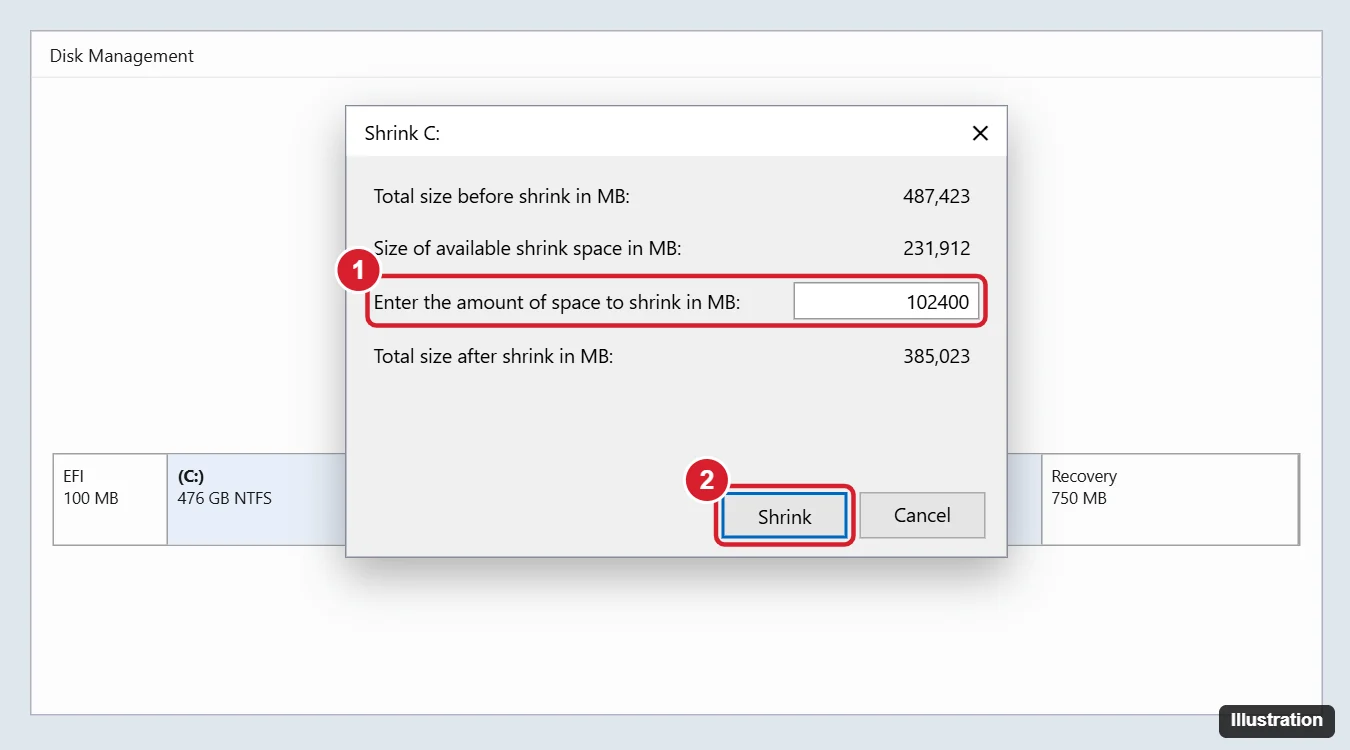
Leave the unallocated space as is. The second system’s installer will format it. Installing on a second physical drive instead is even simpler and safer, if your PC has room for one.
Step 2: Create a bootable USB drive
- For Linux (such as Ubuntu or Linux Mint): Download the ISO from the distribution’s official website and write it to a USB drive with a tool like Rufus or balenaEtcher.
- For a second copy of Windows 11: Use Microsoft’s Media Creation Tool. See how to create a bootable USB for Windows 11.
Step 3: Boot from the USB and install
- Plug in the USB drive and restart your PC. Press the boot menu key (often F12, F11, F9, or Esc) and choose the USB drive.
- Linux: Choose Install. When asked about installation type, pick Install alongside Windows Boot Manager, or choose manual partitioning and use the unallocated space. Most major distributions work with Secure Boot turned on.
- Windows: Choose Custom: Install Windows only, select the Unallocated Space, and click Next. Don’t select your existing Windows partition.
- Finish the installation and restart.
Step 4: Choose which system to start
- With Linux, the GRUB menu appears at startup with both systems listed.
- With two copies of Windows, the Windows Boot Manager shows both. Change the default and timeout in Windows: press Windows key + R, type sysdm.cpl, click Advanced > Startup and Recovery > Settings.
Troubleshooting
- The PC boots straight into Windows. Open your UEFI settings and move the new system (for example, “ubuntu”) above Windows Boot Manager in the boot order, or use the boot menu key.
- Shrink Volume offers little space. Unmovable files like the page file limit shrinking. Run Disk Cleanup, temporarily turn off hibernation (
powercfg /h off), and try again. - Time is wrong after switching systems. Linux and Windows handle the hardware clock differently. In Linux, run
timedatectl set-local-rtc 1, or set Windows to use UTC.
Related: dual boot Windows 10 and Kali Linux.
Related: Dual boot Windows 11 and Ubuntu.
Frequently asked questions
Is dual booting safe?
Yes, if you back up first and pick the right partition during installation. The main risk is accidentally installing over Windows.
Do I need another Windows license to dual boot Windows?
Generally, each Windows installation needs its own license to activate.
How do I remove a dual-boot system later?
For Linux, see how to uninstall Ubuntu on Windows, which covers removing a dual-boot installation.

Kermit Matthews is a freelance writer based in Philadelphia, Pennsylvania with more than a decade of experience writing technology guides. He has a Bachelor’s and Master’s degree in Computer Science and has spent much of his professional career in IT management.
He specializes in writing content about iPhones, Android devices, Microsoft Office, and many other popular applications and devices.