You can close your laptop’s lid and keep working on one or two external monitors in Windows 10, as long as the laptop is plugged in and set not to sleep when the lid closes. This setup is often called clamshell mode. Windows 10 reached end of support on October 14, 2025. Consumer Extended Security Updates (ESU) now run until October 12, 2027.
How to Use 2 Monitors With the Laptop Closed in Windows 10
- Connect the charger and both monitors (through HDMI, DisplayPort, USB-C, or a dock).
- Search Start for Control Panel, then open Hardware and Sound, Power Options.
- Click Choose what closing the lid does.
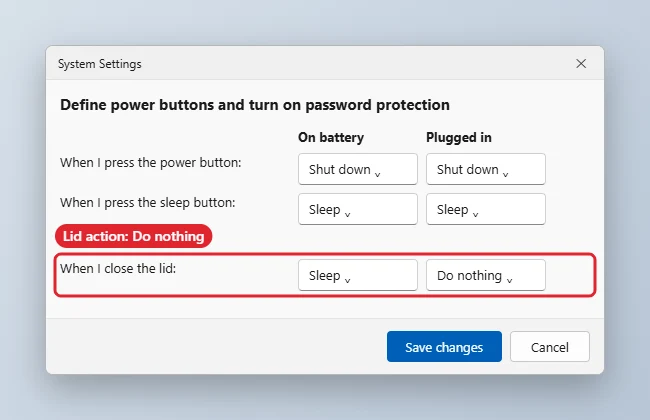
- Set When I close the lid to Do nothing under Plugged in, and click Save changes.
- Open Settings, System, Display, arrange the monitors, choose Extend these displays, and then close the lid. Connect an external keyboard and mouse.
Will this work on battery?
It can, but set the On battery option too and expect faster drain.
Clamshell Setup Checklist
| Item | Why it matters |
|---|---|
| Charger connected | Prevents battery drain and overheating risk |
| Lid action: Do nothing | Stops sleep when closed |
| Two video outputs or a dock | Needed for two external monitors |
| External keyboard and mouse | The built-in ones are covered |
| Good airflow | Some laptops vent through the keyboard area |
When a Monitor or the Lid Setting Misbehaves
- Only one monitor works: your laptop may support just one external display per port. Use a dock that supports dual monitors, or check the manufacturer’s specs.
- The laptop sleeps anyway: confirm the setting under Plugged in, not On battery.
- On Windows 11, see how to keep the laptop on when closed.
Does Windows 11 work the same way?
Yes. The same Power Options setting applies.
Related: Stop games from minimizing on dual monitors in Windows 10.

Kermit Matthews runs Live2Tech from just outside Philadelphia. He is an IT specialist with over 20 years of experience, from a university help desk to small-business IT, IT management and his own consulting practice, and has written tech guides full time since 2020. Steps are checked against the current software on a real device or the maker’s official documentation. More about Kermit.